Issue
Microsoft Edge blocks third-party cookies by default, which prevents Chartbuddy from communicating with Google Slides. You'll need to add a cookie exception for docs.google.com to use Chartbuddy.
Configuration steps
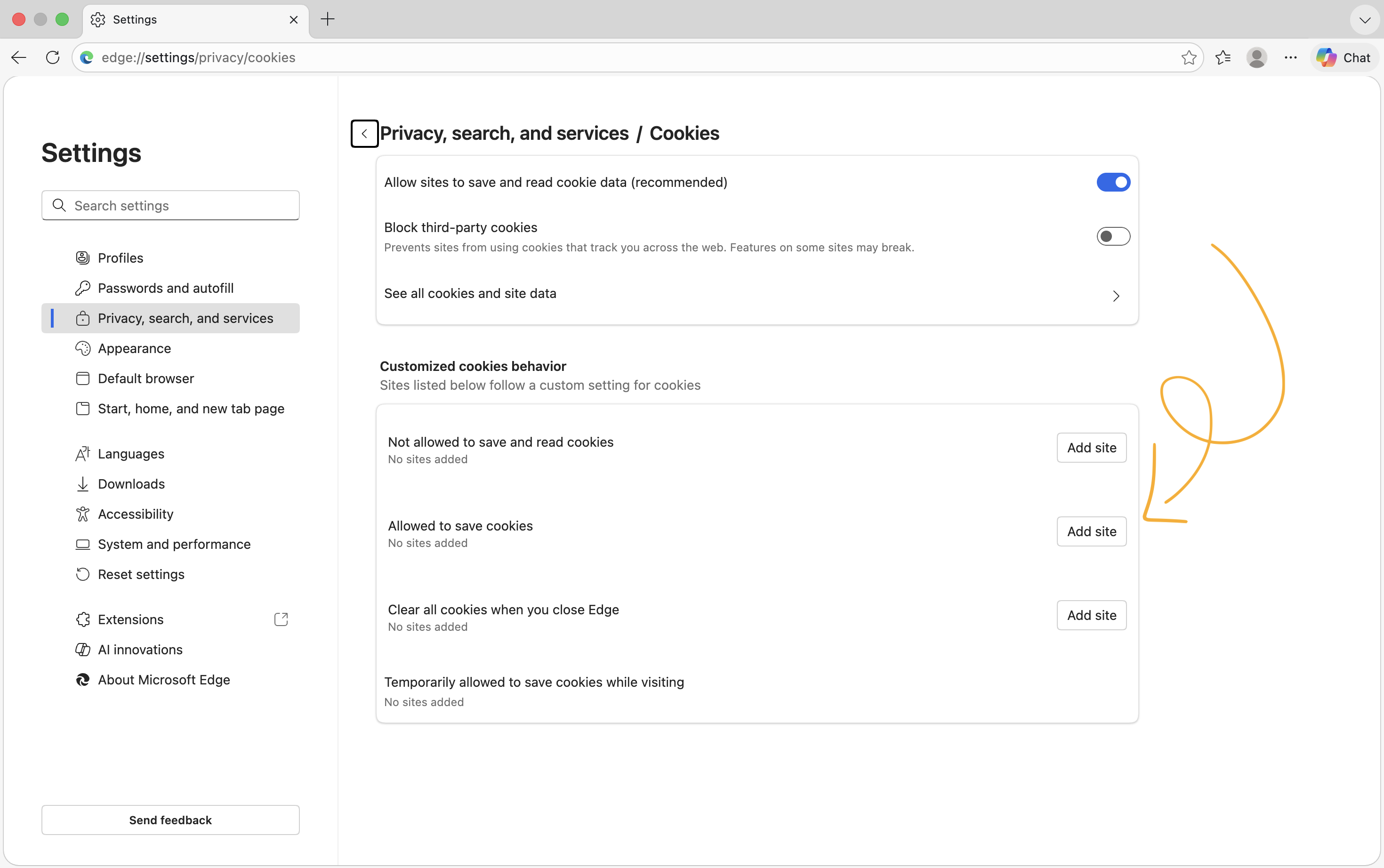
Step 1: Open Edge cookie settings
Copy and paste this URL into Edge's address bar:
edge://settings/privacy/cookies
Step 2: Locate the cookie exceptions section
Scroll down to find the section titled "Allowed to save cookies" and click the Add site button.
Step 3: Add the Google Docs domain
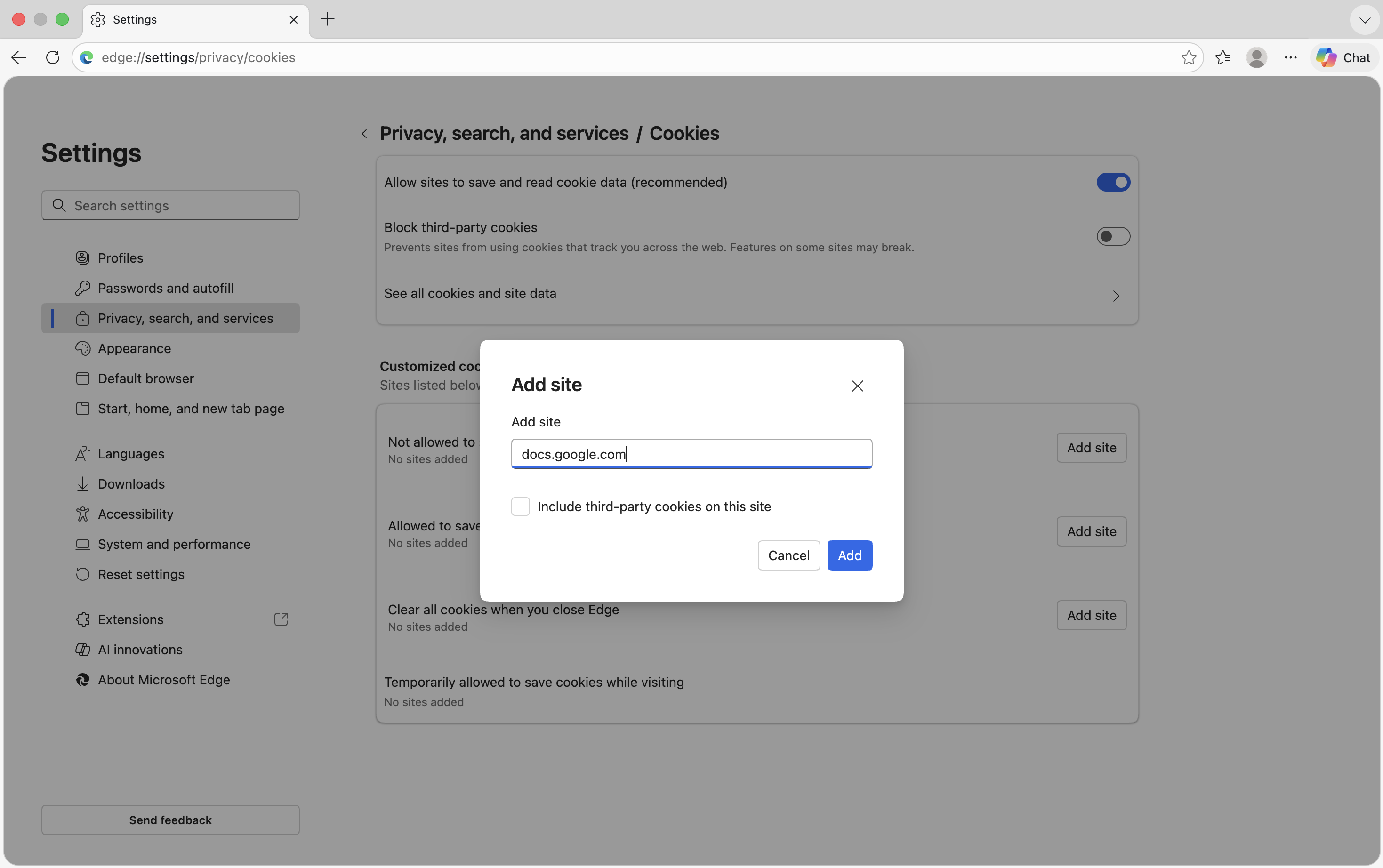
In the dialog, enter the following domain (without https://):
docs.google.com
Click Add to save the exception.
Step 4: Refresh Google Slides
Return to your Google Slides presentation and refresh the page:
- Windows: Press F5 or Ctrl+R
- Mac: Press Cmd+R
Complete
Chartbuddy should now work in Microsoft Edge. If you still experience issues, verify that the Chartbuddy extension is installed and enabled, then try restarting your browser.
Need help?
If you continue to experience issues after following these steps, please contact our support team or book a meeting.