Chartbuddy installs as a browser extension for Chrome and Edge. Once installed, it's available in every Google Slides presentation you open.
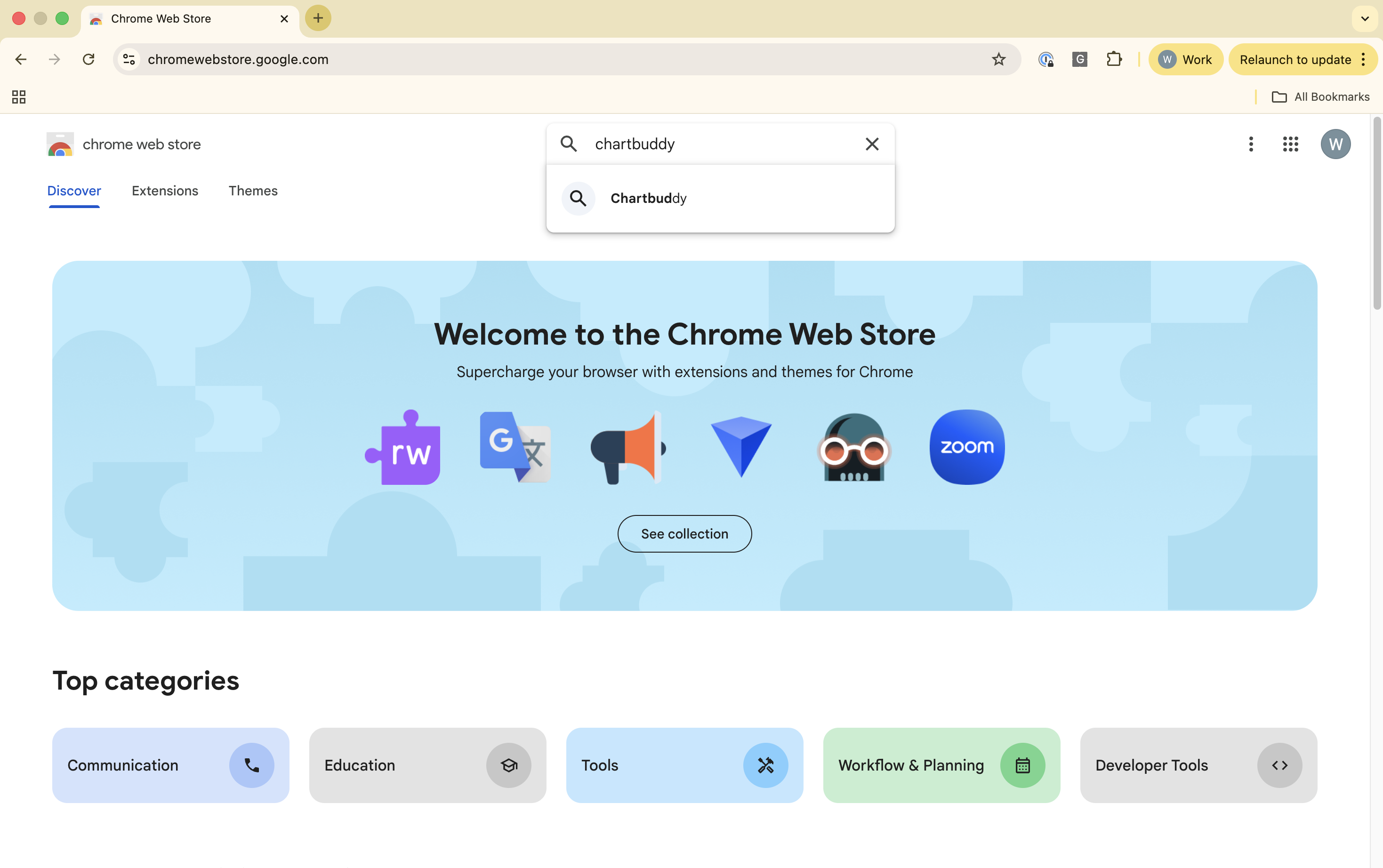
Step 1: Open the Chrome Web Store
Go to the Chrome Web Store and search for "Chartbuddy," or use the direct link from chartbuddy.io.
Step 2: Click "Add to Chrome"
Click the "Add to Chrome" button in the top right. A permissions dialog will appear - click "Add extension" to confirm.

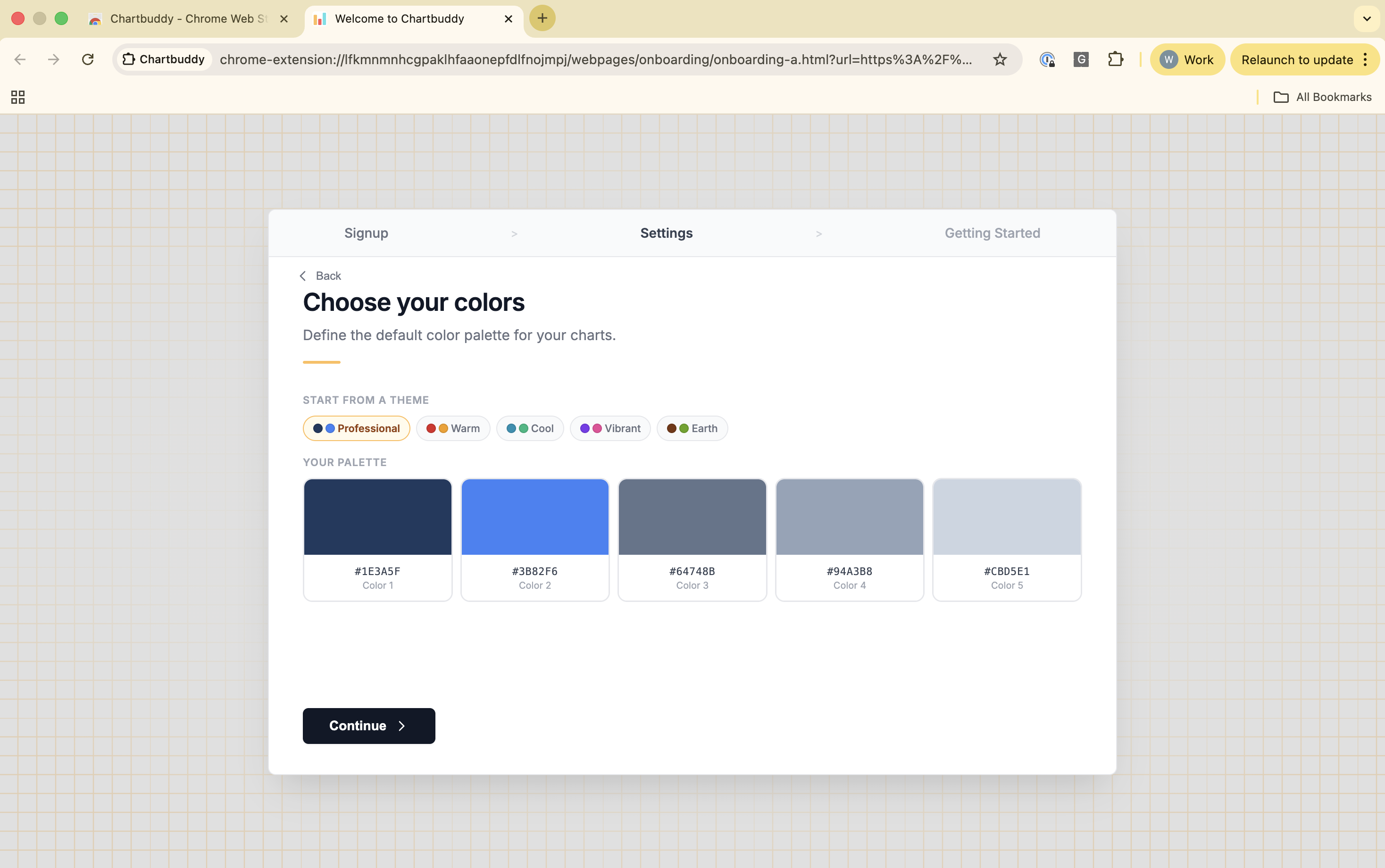
Step 3: Complete the setup flow
After installing, Chartbuddy walks you through a short setup: sign in with your Google account, accept the Terms & Conditions, and set your default colors and preferences. This only happens once.
Step 4: Start building in Google Slides
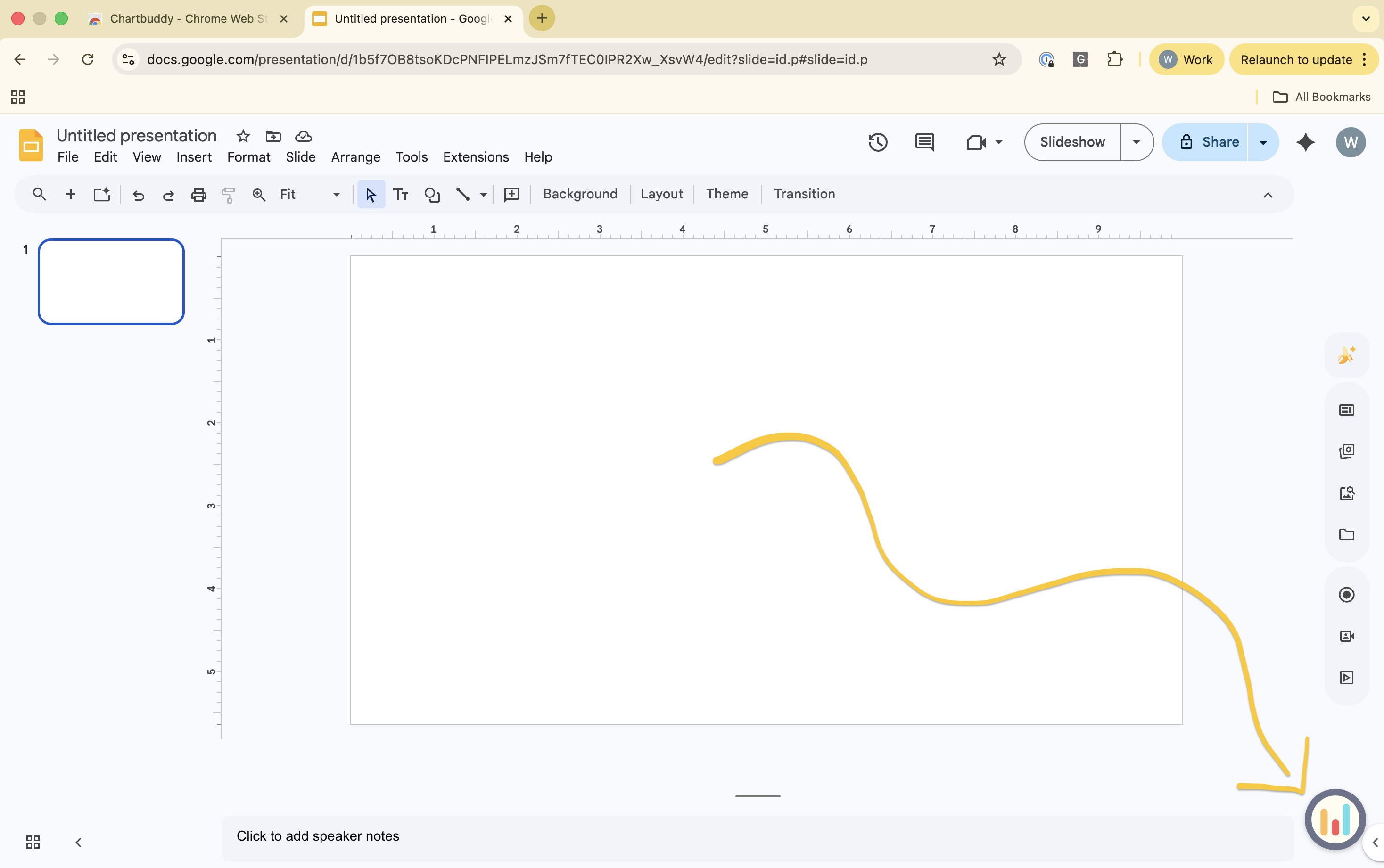
Once setup is complete, Chartbuddy guides you to Google Slides. Open any presentation and you'll see the Chartbuddy widget in the bottom-right corner of the screen. Click it to start creating charts.
Supported browsers
Chartbuddy works on Google Chrome and Microsoft Edge. Other Chromium-based browsers may work but are not officially supported. Safari and Firefox are not supported.