Chrome usually updates Chartbuddy automatically in the background. After a browser restart, you should be on the latest version without doing anything.
If you still see an old version, or Chartbuddy is not working as expected, you can force an update manually.
Manual update steps
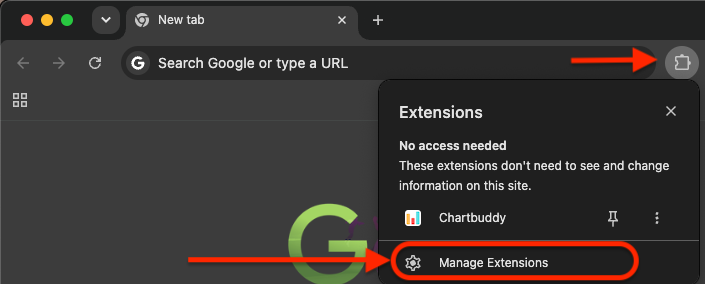
Step 1: Open Manage extensions
In Chrome, click the puzzle piece icon next to the toolbar, then click Manage extensions.
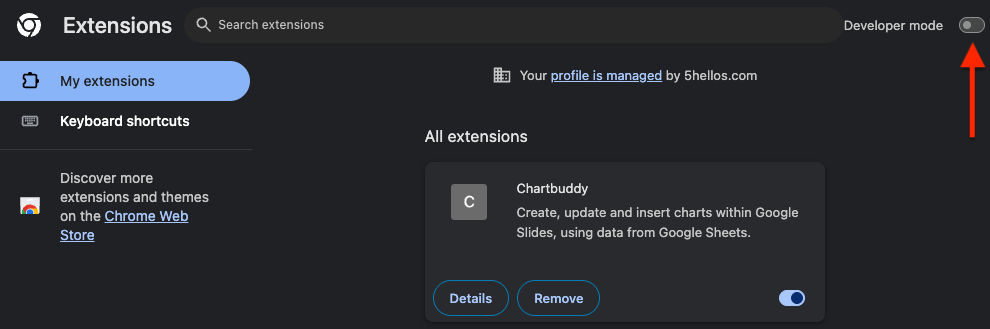
Step 2: Turn on Developer mode
On the Extensions page, toggle Developer mode on in the top-right corner.
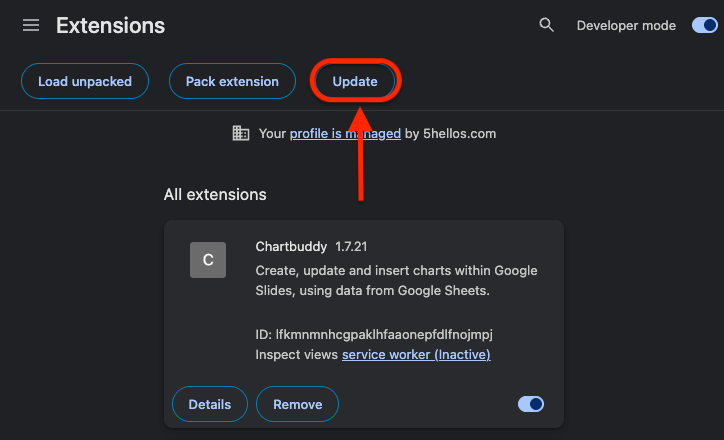
Step 3: Click Update
With Developer mode enabled, click the Update button. Chrome will check for and install the latest version of Chartbuddy.
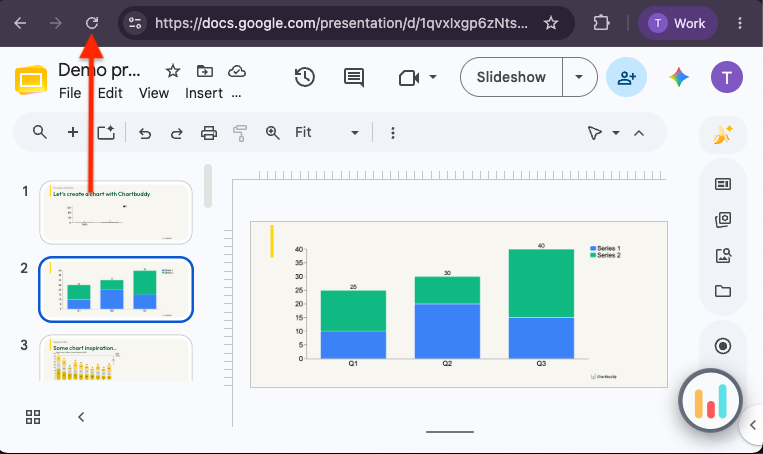
Step 4: Refresh your Google Slides tab
Return to your Google Slides presentation and refresh the tab so Chartbuddy loads the updated extension:
- Windows: Press F5 or Ctrl+R
- Mac: Press Cmd+R
After updating
Open Chartbuddy again in your presentation.
Need help?
If you continue to experience issues after updating, please contact our support team or book a meeting.