
Appearance
Connect ChatGPT / Codex
This page is for Codex CLI and the Codex tab in the ChatGPT desktop application. ChatGPT (web) – browser chat and regular chat in the desktop app – uses a different path. See Connect ChatGPT (web).
Setup via Chartbuddy Hub
- Install Chartbuddy Hub and launch it once (approve OS security prompts).
- Open AI connections in Hub (title-bar cable icon).
- Connect ChatGPT Desktop / Codex CLI. Hub writes the server into your Codex user config.
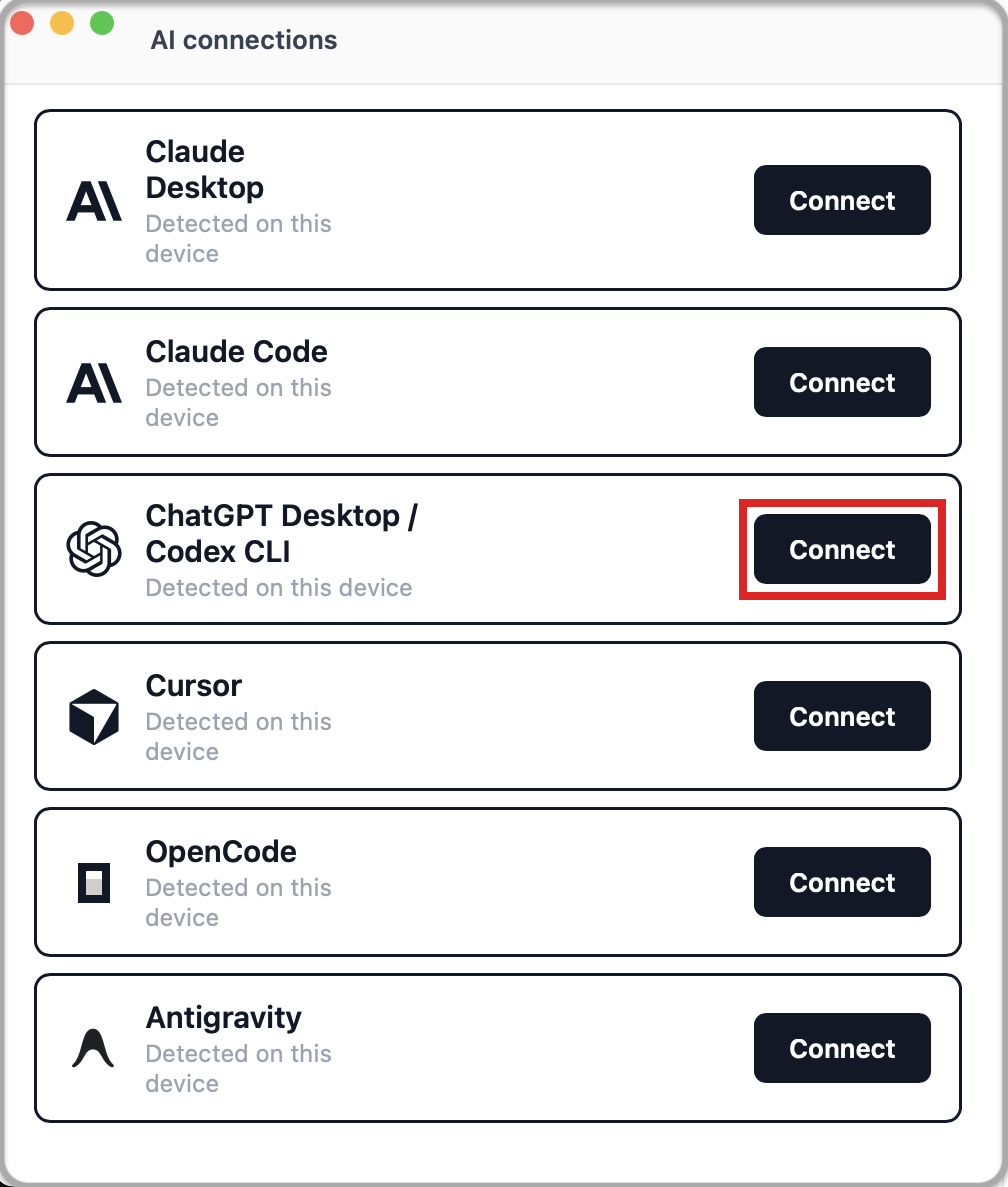
- Restart ChatGPT or Codex, then start a new Codex task so tools load.
Setup manually
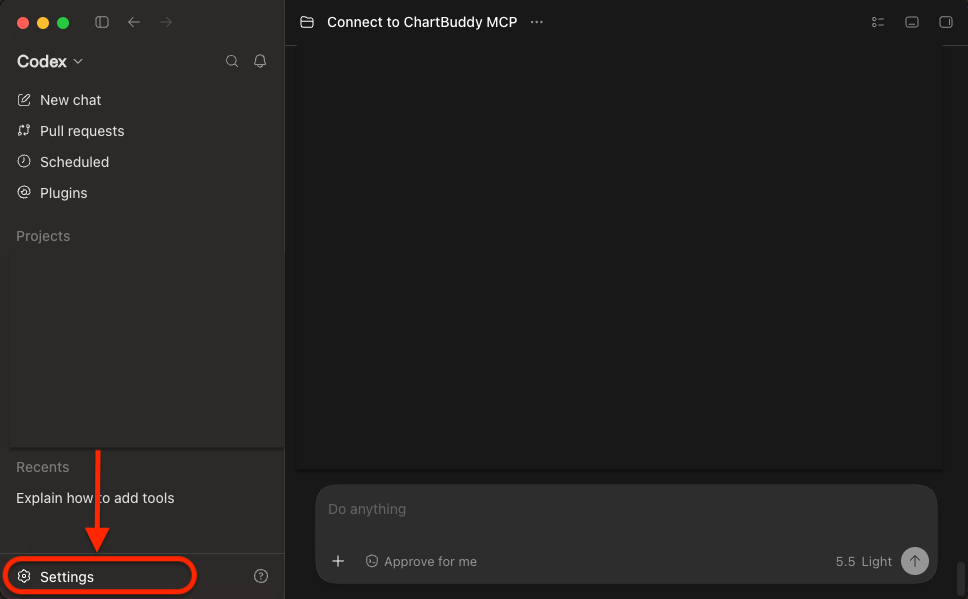
1. Open Settings
In the ChatGPT desktop app, click Settings in the bottom-left corner of the sidebar.
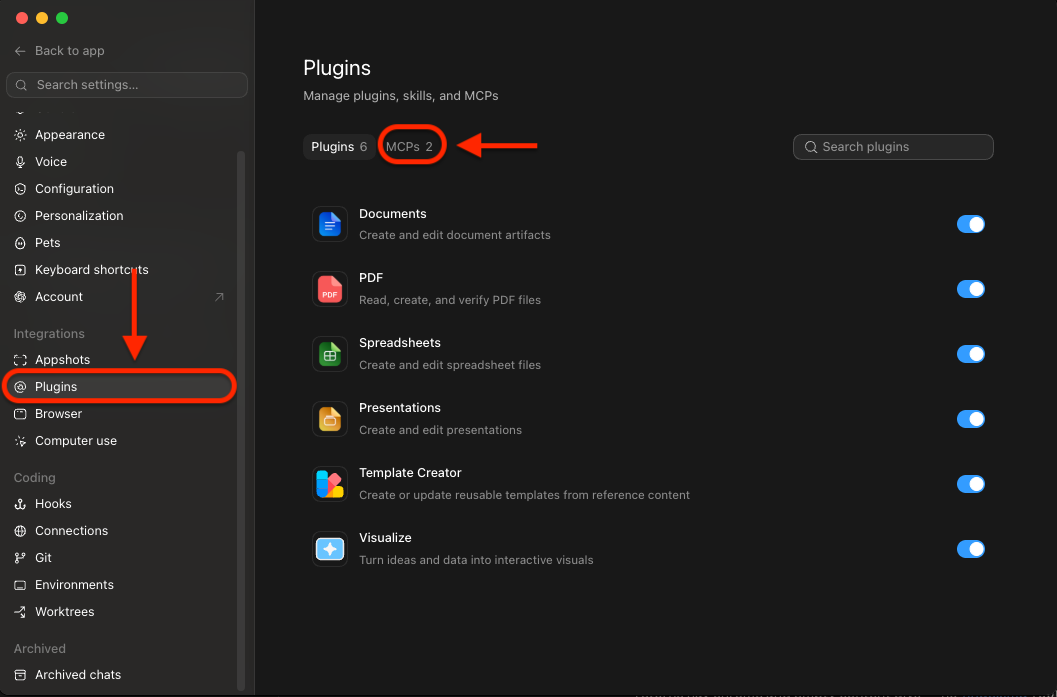
2. Plugins → MCPs
In the settings sidebar, open Plugins (under Integrations). Then open the MCPs tab.
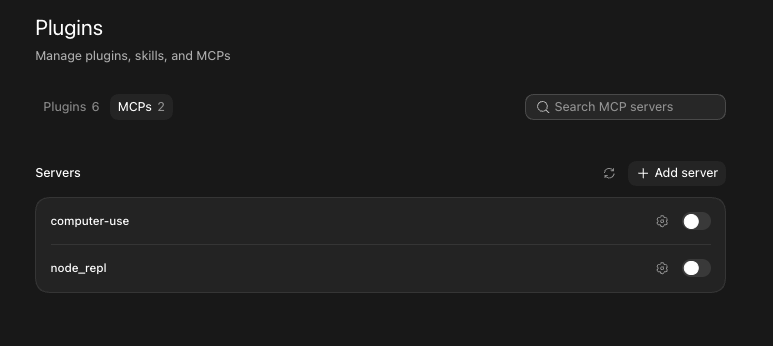
3. Add server
On the MCPs tab, click + Add server.
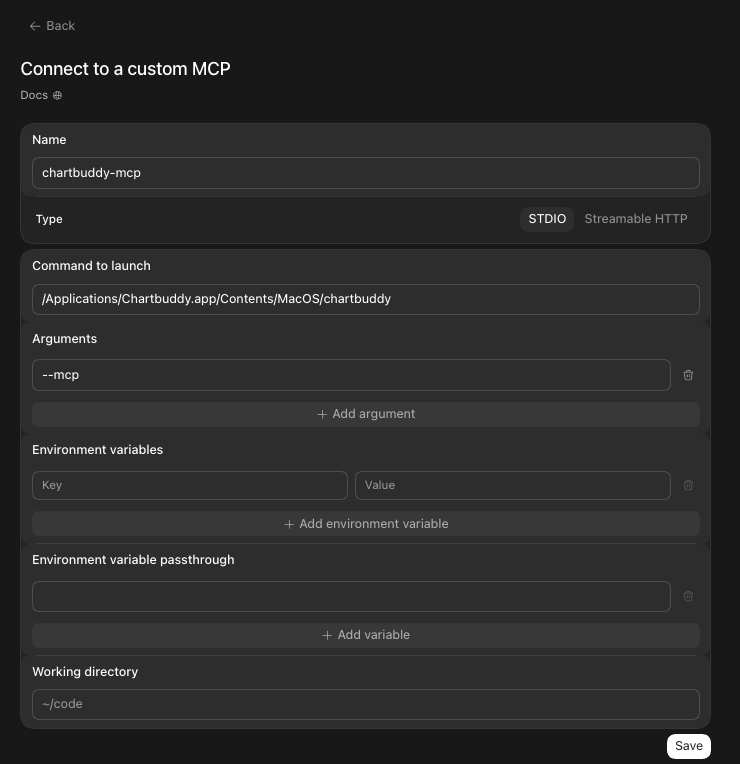
4. Enter the Chartbuddy details
Choose Connect to a custom MCP (STDIO). Fields appear in this order – fill in every row:
| Field | Value |
|---|---|
| Name | Chartbuddy-Hub (or chartbuddy) |
| Type | STDIO |
| Command to launch | Chartbuddy binary (see OS paths below) |
| Arguments | --mcp |
| Environment variables | leave empty |
| Working directory | leave the default |
Command to launch:
- macOS:
/Applications/Chartbuddy.app/Contents/MacOS/chartbuddy - Windows:
C:\Users\YOUR_USER\AppData\Local\Programs\Chartbuddy\chartbuddy.exe(replaceYOUR_USER, or use the path shown after install)
Click Save.
After saving
- Keep Chartbuddy Hub running.
- Start a new Codex session and enable the Chartbuddy MCP server for that session if tools do not appear.
- If ChatGPT asks to approve network / loopback for
chartbuddy, approve it – the adapter must reach Chartbuddy Hub on127.0.0.1. - Optional check:
powershell
& "$env:LOCALAPPDATA\Programs\Chartbuddy\chartbuddy.exe" --mcp-statusbash
/Applications/Chartbuddy.app/Contents/MacOS/chartbuddy --mcp-statusExit 0 = Chartbuddy Hub is up.
Troubleshooting
Tool call blocked – “reasoning summaries” / organization verification
On the desktop Codex tab, Chartbuddy may be configured correctly and still fail when OpenAI’s automatic approval reviewer blocks the tool call – often with an error about “reasoning summaries” requiring organization verification. That comes from OpenAI’s approval / org settings, not from Chartbuddy or a bad MCP path.
Options:
- Use Codex CLI instead of the desktop Codex tab (same MCP config, often fewer approval blockers), or
- Verify your organization at platform.openai.com/settings/organization/general, or switch to another editor – we recommend Cursor, Claude Code, or OpenCode.