
Appearance
Connect Claude Code
Wire Claude Code (CLI) to Chartbuddy Hub over local stdio MCP.
Setup via Chartbuddy Hub
- Install Chartbuddy Hub and launch it once (approve OS security prompts).
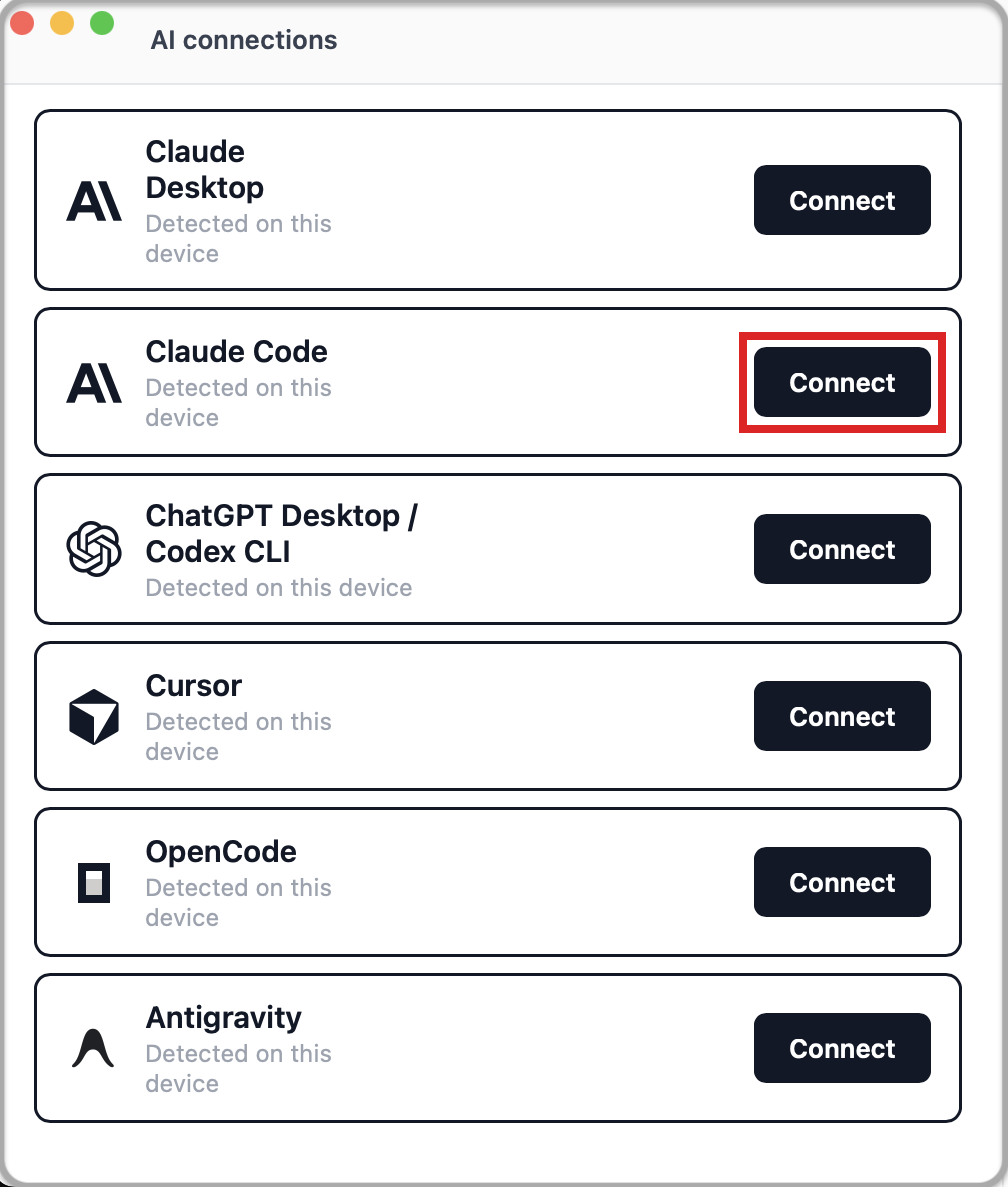
- Open AI connections in Hub (title-bar cable icon).
- Connect Claude Code. Hub writes the server into your user Claude Code config.
- Start a new Claude Code session (or run
/reload-plugins) so tools load.
Setup via prompting Claude
Prompt to paste into Claude Code:
text
Set up the Chartbuddy Hub MCP server for this Claude Code install:

1. Detect my OS and find the Chartbuddy binary at its default install path:
   - macOS: /Applications/Chartbuddy.app/Contents/MacOS/chartbuddy
   - Windows: %LOCALAPPDATA%\Programs\Chartbuddy\chartbuddy.exe
   If it's not there, ask me for the correct path. Don't guess or search the whole filesystem.

2. Check whether an MCP server named "chartbuddy" is already registered
   (`claude mcp list`). If it is, tell me and stop.

3. Register it as a user-scoped stdio MCP server:
   claude mcp add-json chartbuddy '{"type":"stdio","command":"<resolved path>","args":["--mcp"]}' --scope user

4. Confirm the Hub app is running and the bridge is reachable:
   <resolved path> --mcp-status
   (exit 0 = up, exit 1 = unreachable. If unreachable, tell me to launch
   Chartbuddy Hub first. Don't launch it yourself.)

5. Tell me to start a brand-new Claude Code session. MCP servers added
   mid-session aren't picked up.
Setup via Terminal
Use user scope so the absolute binary path is not committed to a repo.
powershell
claude mcp add-json chartbuddy '{"type":"stdio","command":"C:\\Users\\YOUR_USER\\AppData\\Local\\Programs\\Chartbuddy\\chartbuddy.exe","args":["--mcp"]}' --scope userbash
claude mcp add-json chartbuddy '{"type":"stdio","command":"/Applications/Chartbuddy.app/Contents/MacOS/chartbuddy","args":["--mcp"]}' --scope userEquivalent transport form:
powershell
claude mcp add --transport stdio chartbuddy --scope user -- "C:\Users\YOUR_USER\AppData\Local\Programs\Chartbuddy\chartbuddy.exe" --mcpbash
claude mcp add --transport stdio chartbuddy --scope user -- "/Applications/Chartbuddy.app/Contents/MacOS/chartbuddy" --mcpThen start a new Claude Code session – mid-session attach fails in Claude Code.
Verify
powershell
& "$env:LOCALAPPDATA\Programs\Chartbuddy\chartbuddy.exe" --mcp-statusbash
/Applications/Chartbuddy.app/Contents/MacOS/chartbuddy --mcp-statusKeep Chartbuddy Hub running while you chart.