
Appearance
Install Hub on Windows
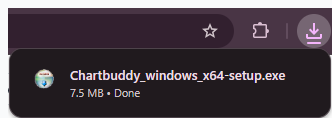
Download starts from the Windows download page. The installer is Chartbuddy_windows_x64-setup.exe.
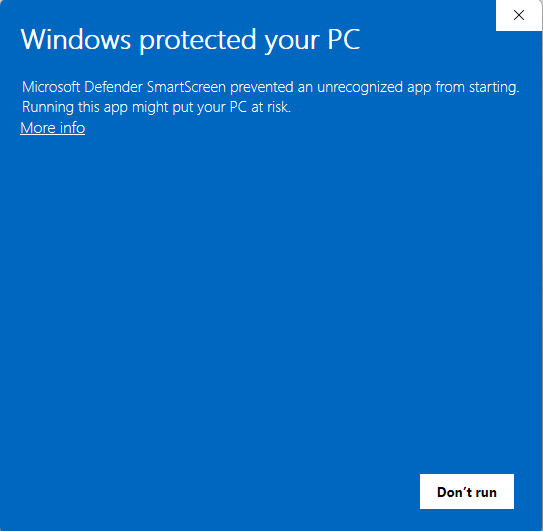
If Windows shows Windows protected your PC, that is SmartScreen. Why it appears and how to continue.
1. Open the installer
When the download is complete, open Chartbuddy_windows_x64-setup.exe from your browser download bar or Downloads folder.
2. Select “More info”
Windows may show this message while it builds familiarity with a new download. Select More info to see the installer and publisher details.
3. Select “Run anyway”
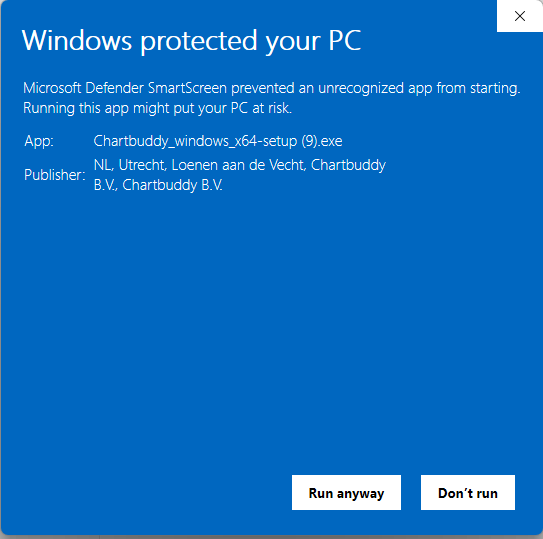
Select Run anyway to start the installer.
The publisher should be Chartbuddy B.V. If it is different, or Windows reports an invalid signature, do not continue.
4. Follow the installer
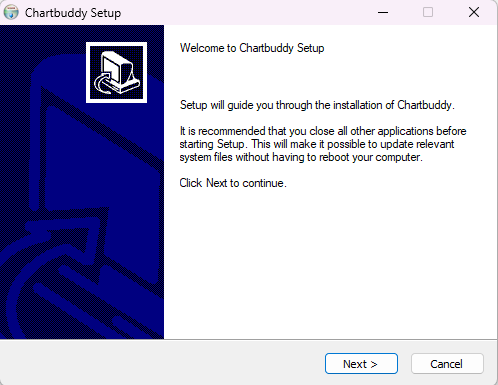
Click through the Chartbuddy setup wizard. Keep the default options and select Install, then Finish when it completes.
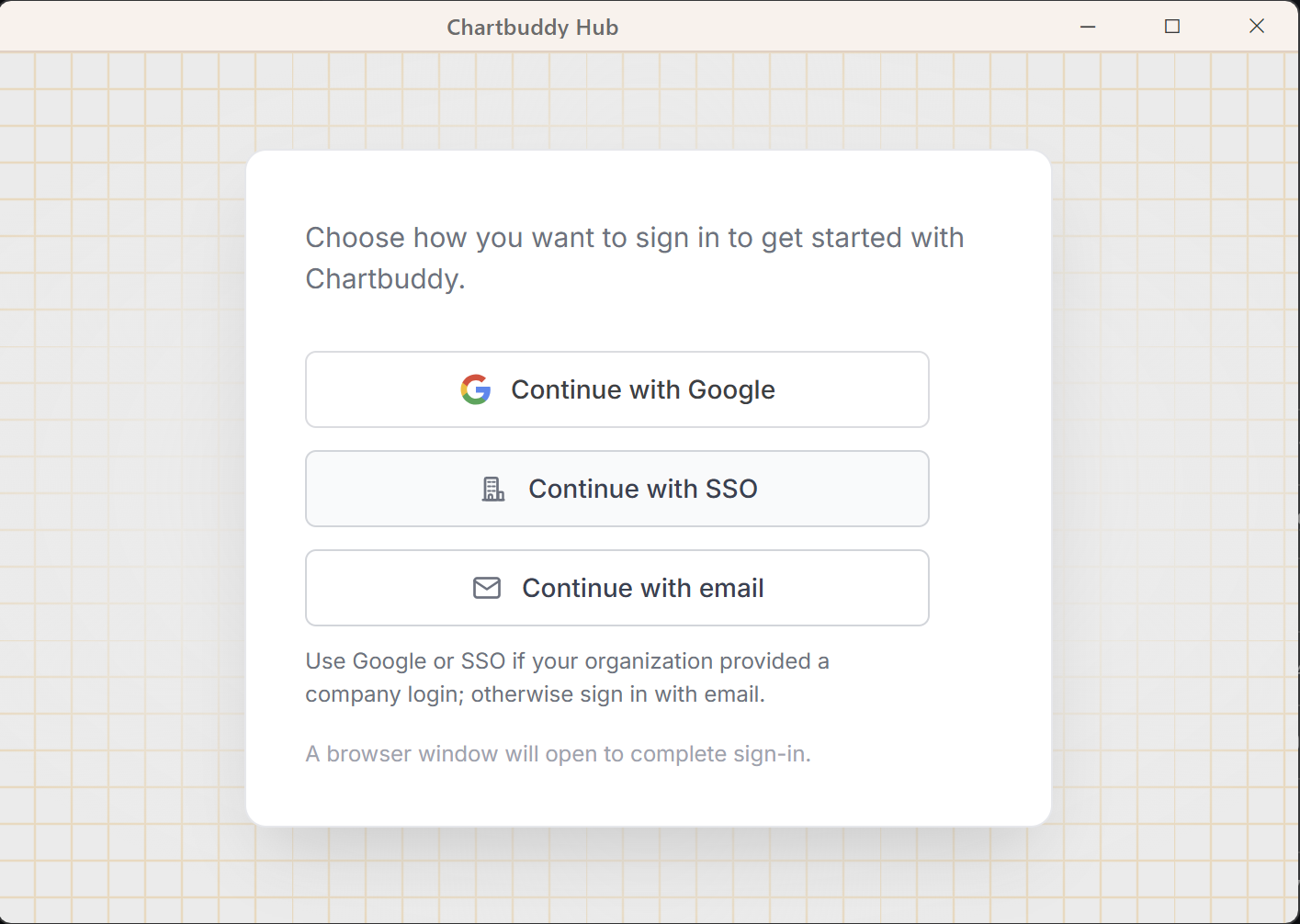
5. Sign in
When Hub opens, sign in with your existing Chartbuddy account, the same email you already use on chartbuddy.io.
For client IT and security teams
- Official download page:
https://chartbuddy.io/download/hub/windows - Installer path:
https://chartbuddy.io/downloads/hub/Chartbuddy_windows_x64-setup.exe - Expected Windows publisher: Chartbuddy B.V.
You can also confirm the signature in File Explorer: right-click the .exe → Properties → Digital Signatures.
Next steps
Connect an AI client or read Desktop basics.