
Appearance
Connect OpenCode
Wire OpenCode to Chartbuddy Hub over local stdio MCP.
Setup via Chartbuddy Hub
- Install Chartbuddy Hub and launch it once (approve OS security prompts).
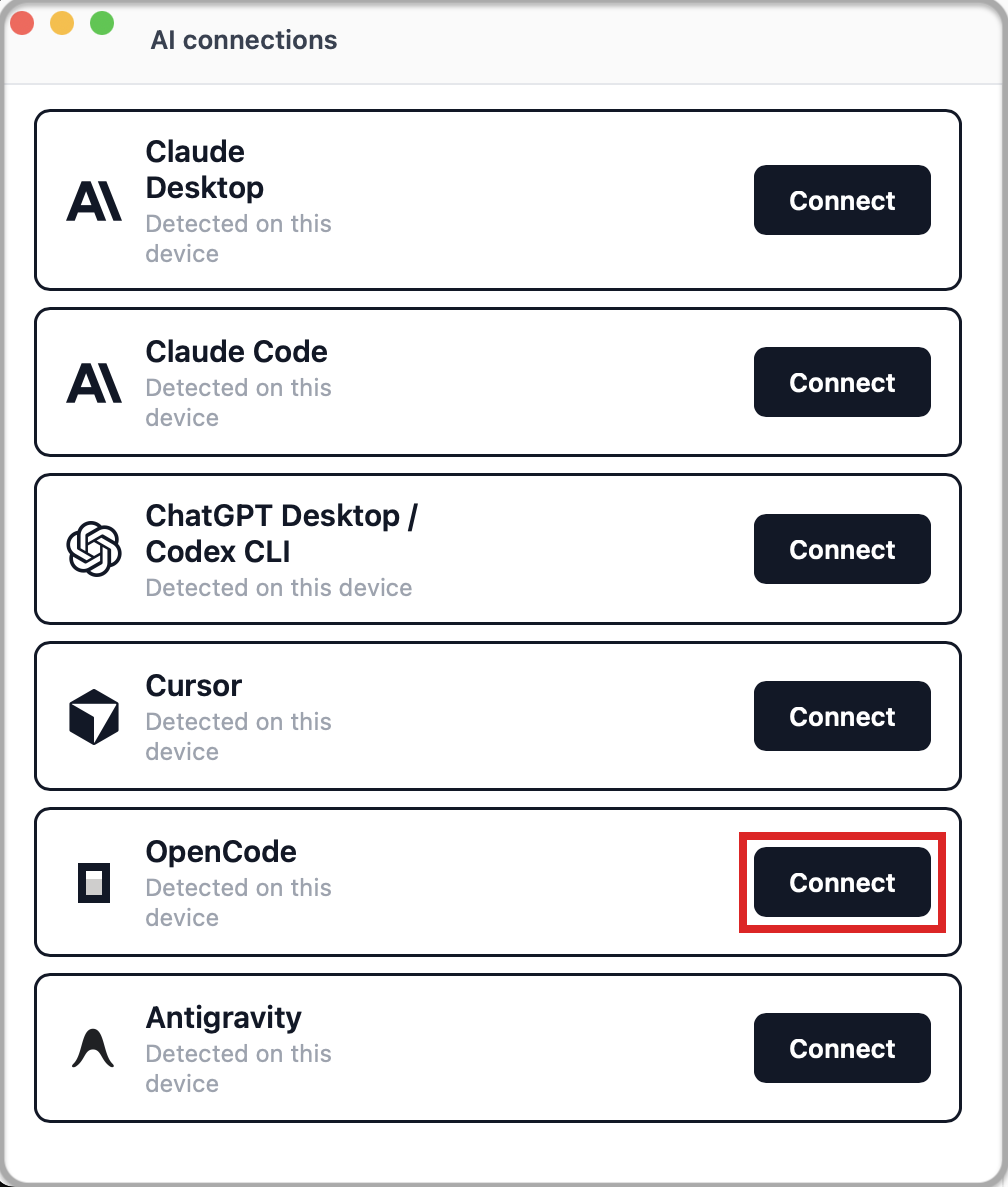
- Open AI connections in Hub (title-bar cable icon).
- Connect OpenCode. Hub writes the server into your global OpenCode config.
- Restart OpenCode so tools load.
Setup manually
Edit your global OpenCode config (opencode.json or opencode.jsonc – prefer global so the absolute Chartbuddy path is not committed to a repo):
- macOS / Linux:
~/.config/opencode/ - Windows:
%USERPROFILE%\.config\opencode\
Add a Chartbuddy-Hub entry under mcp.servers:
json
{
  "$schema": "https://opencode.ai/config.json",
  "mcp": {
    "servers": {
      "Chartbuddy-Hub": {
        "type": "local",
        "command": [
          "C:\\Users\\YOUR_USER\\AppData\\Local\\Programs\\Chartbuddy\\chartbuddy.exe",
          "--mcp"
        ]
      }
    }
  }
}
json
{
  "$schema": "https://opencode.ai/config.json",
  "mcp": {
    "servers": {
      "Chartbuddy-Hub": {
        "type": "local",
        "command": [
          "/Applications/Chartbuddy.app/Contents/MacOS/chartbuddy",
          "--mcp"
        ]
      }
    }
  }
}
Keep Chartbuddy Hub running. Restart OpenCode so tools load.
Verify
powershell
& "$env:LOCALAPPDATA\Programs\Chartbuddy\chartbuddy.exe" --mcp-statusbash
/Applications/Chartbuddy.app/Contents/MacOS/chartbuddy --mcp-statusExit 0 = Chartbuddy Hub bridge up.