Appearance
Connect Google Antigravity
Wire Google Antigravity to Chartbuddy Hub over local stdio MCP.
Setup via Chartbuddy Hub
- Install Chartbuddy Hub and launch it once (approve OS security prompts).
- Open AI connections in Hub (title-bar cable icon).
- Connect Antigravity. Hub writes the server into your global Antigravity MCP config.
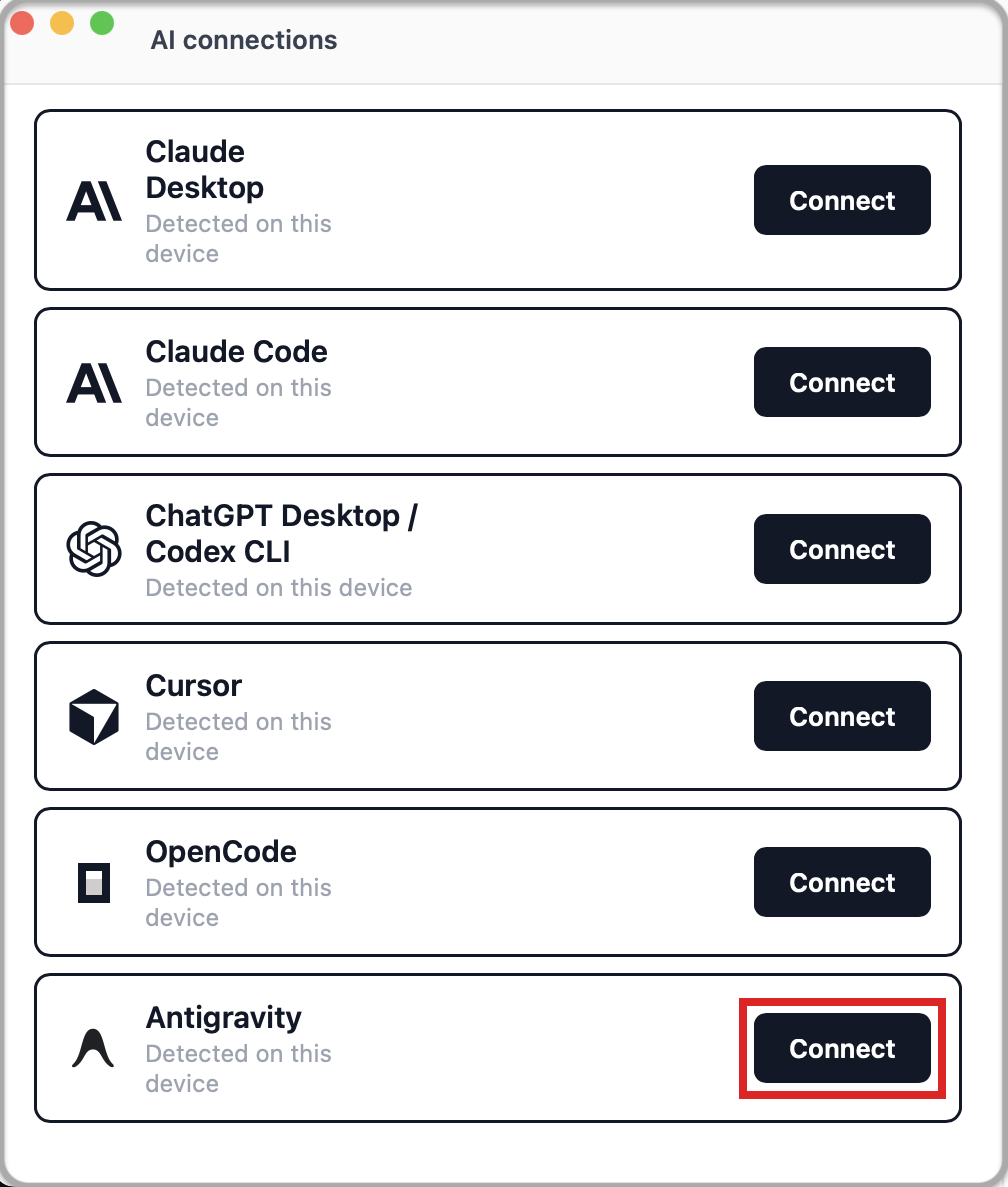
- Restart Antigravity or start a new conversation so tools load.
Setup manually
Open Manage MCP Servers → View raw config, or edit the global MCP file directly:
- macOS / Linux:
~/.gemini/config/mcp_config.json - Windows:
%USERPROFILE%\.gemini\config\mcp_config.json
Add a Chartbuddy-Hub entry under mcpServers (leave other servers untouched):
json
{
  "mcpServers": {
    "Chartbuddy-Hub": {
      "command": "C:\\Users\\YOUR_USER\\AppData\\Local\\Programs\\Chartbuddy\\chartbuddy.exe",
      "args": ["--mcp"]
    }
  }
}
json
{
  "mcpServers": {
    "Chartbuddy-Hub": {
      "command": "/Applications/Chartbuddy.app/Contents/MacOS/chartbuddy",
      "args": ["--mcp"]
    }
  }
}
Keep Chartbuddy Hub running. Restart Antigravity or start a new conversation so tools load.
If Antigravity reports that the command cannot be found, confirm Chartbuddy is installed at the path above (or use Hub's AI connections button to rewrite the entry).
Verify
powershell
& "$env:LOCALAPPDATA\Programs\Chartbuddy\chartbuddy.exe" --mcp-statusbash
/Applications/Chartbuddy.app/Contents/MacOS/chartbuddy --mcp-statusExit 0 = Chartbuddy Hub bridge up.