
Appearance
The data window
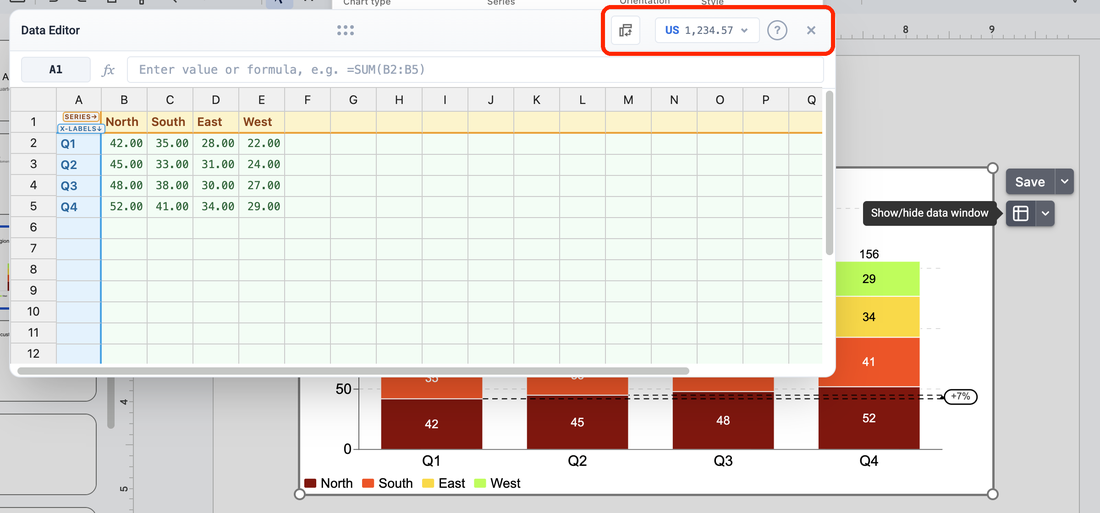
Every chart you type or paste data into keeps that data in a small spreadsheet, the data window (titled Data Editor). Edit a cell and the chart redraws. It works like Excel and Google Sheets for chart data: copy and paste, formulas, fill down and undo. For figures that need complex calculations, work them out in Excel or Google Sheets first and paste the result, or connect the chart to Google Sheets.
Show or hide the data window
Click the data window button beside the chart. Close it again with the same button, the × in its header, or Escape.
The header of the window holds:
- the Name box: type a cell or range, such as
B3orB3:D7, and press Enter to jump there; - fx: a list of common functions for a formula;
- the number format indicator, see Number formats;
- the orientation button, which swaps whether series run in rows or columns (not on every chart type);
- ?: what the window does, what it does not support and the main shortcuts, with All shortcuts for the full list.
The window does not support multiple sheets, links to other files, cell formatting, sorting, filters or merged cells. To use an Excel file, copy and paste its cells.
Spreadsheet options
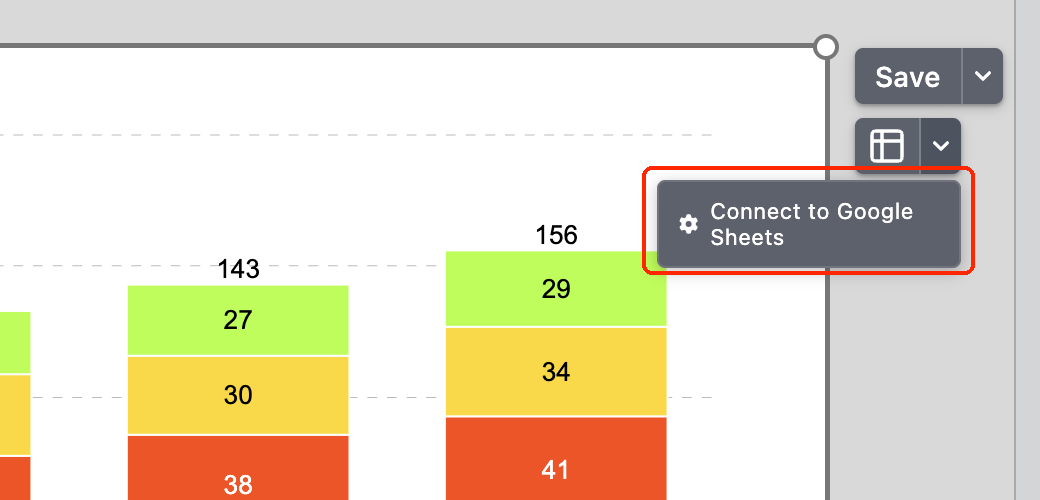
Click the arrow next to the data window button. It has one item:
- Connect to Google Sheets opens Google Sheets Connection Settings to link the chart to a range in a spreadsheet. See Connect to Google Sheets.
Once a chart is connected, the data window button and this arrow make way for the update button and Data & connection options.
Rows and columns
The first row holds the series names and the first column the category labels (or the other way round, after the orientation button). The rest are the values.
- Add rows or columns at the end: click the + buttons on the bottom and right edges of the grid.
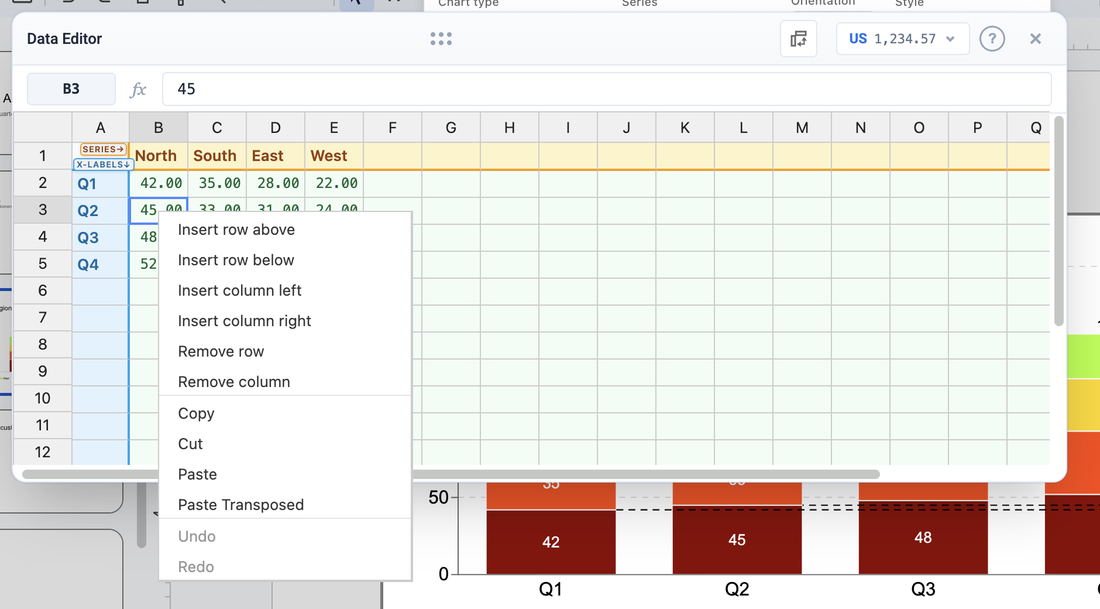
- Insert or delete: right-click a cell and choose Insert row above, Insert row below, Insert column left, Insert column right, Remove row or Remove column. The same menu has Copy, Cut, Paste, Paste Transposed, Undo and Redo.
- With the keyboard: Ctrl+Shift+= (⌘+Shift+=) inserts rows, or columns when whole columns are selected; Ctrl+− (⌘+−) deletes them.
- Column width: drag the edge of a column header.
Related
- Paste and edit data – paste from Excel or Sheets, formulas, fill
- Number formats and Smart format – decimal separators and decimals
- Keyboard shortcuts – every key in the data window