
Appearance
Troubleshooting
Most problems with the extension come from the page it runs on, the sign-in, or access to a Google Sheets file. Find what you see in the first column; the messages are the ones the extension shows.
The Chartbuddy button does not appear
| What you see | What to do |
|---|---|
| No Chartbuddy button in the corner of the deck | Reload the tab. Check that the extension is switched on in Chrome's extensions page and that you are in a Google Slides deck (docs.google.com/presentation/...). |
| Unsupported Website after clicking the Chartbuddy icon in Chrome's toolbar | The extension works on Google Slides. Open a deck there. |
| Please convert this file to Google Slides format | The deck is a .pptx file. Choose File > Save as Google Slides; the converted copy works normally. |
| You can't create a new chart while editing one. Save the open chart first. | A chart is open in the editor. Click Save, or Close without saving under the arrow next to it. |
Sign-in problems
| What you see | What to do |
|---|---|
| A warning badge on the Chartbuddy button, tooltip Signed out · click to sign in | Click the button and sign in again with Continue with Google or Continue with SSO. |
| Authentication failed. Please re-authenticate with Google. | Your Google access for Chartbuddy expired or was revoked. Sign in again; allow the access Google asks for. |
| Token expired. Please try again - the system will automatically refresh your authentication. | Try the action again; the extension renews the sign-in on the next try. |
| Your chart is ready to save. with Start Subscription when you click Save | The trial of your organization has ended. Click Start Subscription, or ask the owner of your organization's account. Not now keeps the chart open without saving. |
Data does not update from Google Sheets
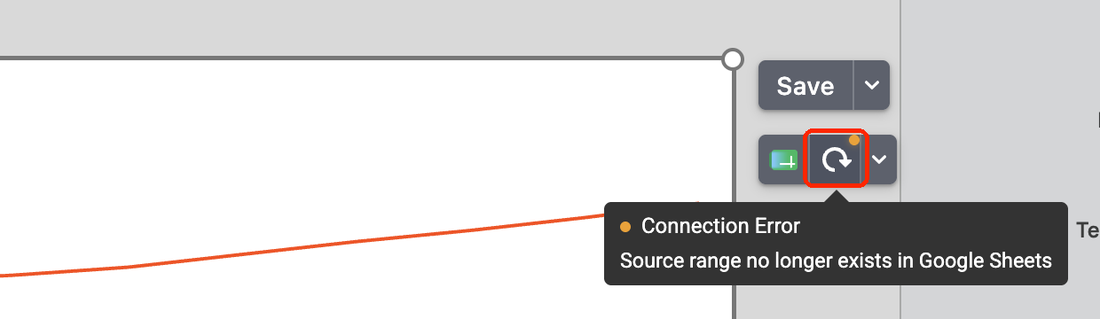
A yellow dot on the update button means the last update failed; its tooltip shows the reason.
| What you see | What to do |
|---|---|
| No permission to access the spreadsheet or document not in your workspace. Please request access from the owner. | Ask the owner of the spreadsheet for access, or open Connection Settings and give Chartbuddy access to the file when Google asks. |
| Range not found - it may have been deleted or is invalid. Please update your connection. or Named range not found - it may have been deleted from the spreadsheet. Please update your connection. | The range was removed in Sheets (for example with Remove Range). Open Connection Settings and pick the range again, or Remove Connection. |
| A yellow dot on the update button, tooltip Connection Error and Source range no longer exists in Google Sheets | The same: the connected range was removed. Pick a range again in Connection Settings, or Remove Connection. |
| Background updates paused - authentication required. Click the update button to reconnect. | Click the update button; sign in again if asked. |
| Data is up to date - no changes detected. | The sheet has not changed since the last update. Check that you edited the connected range (the one with the black border and 📊 Options). |
| No open Google Sheets tabs in Google Sheets Connection Settings | Open the spreadsheet in another tab of the same window, then click the refresh button in Step 1: Select Spreadsheet. |
| Please connect to the internet to save your chart. | Saving and updating need a connection. |
Related
- Install and sign in – the Chartbuddy button and signing in
- Update or remove a connection – change the connected range
- Help Center – questions about your account and billing