
Appearance
Number formats and Smart format
Numbers are formatted in two places. On the chart, labels and axes take a number format from the toolbar ($0.0M, 0%) and date axes a date format. In the data window, you choose how numbers are written (US or EU separators) and how many decimals show, and Chartbuddy detects the style of what you paste. This page covers all three.
Number formats
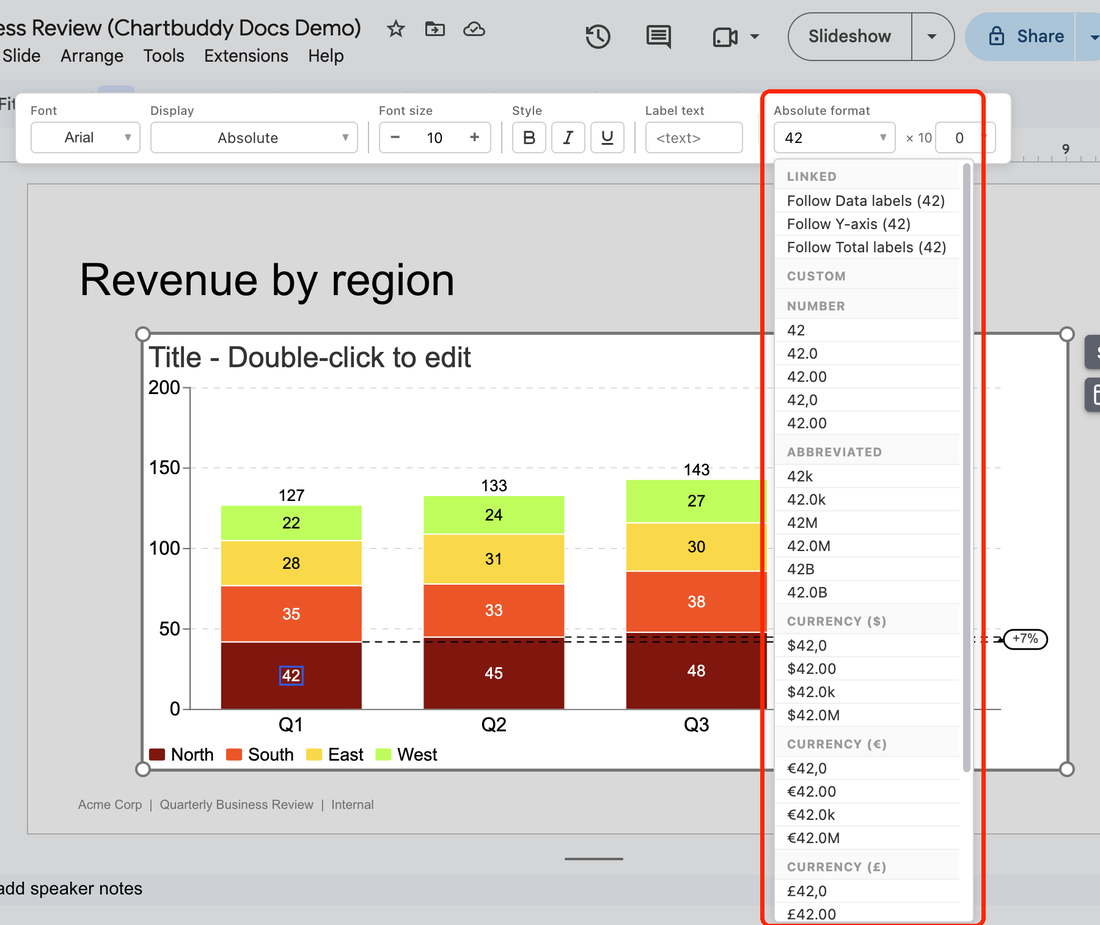
Select data labels, total labels or axis labels and look for Number format in the toolbar. Open the list and pick a format; the preview shows what your number will look like. The groups are:
| Group | Formats |
|---|---|
| Number | 0, 0.0, 0.00, 0,0, 0,0.00 |
| Abbreviated | 0k, 0.0k, 0M, 0.0M, 0B, 0.0B |
| Currency ($), Currency (€), Currency (£) | for example $0,0, €0.0k, £0.0M |
| Percentage | 0%, 0.0% |
| Other | 1.234,56 (EU separators) |
You can also type your own format in the box. The × 10 setting next to it scales the values down by a power of ten. Where a label can follow the format of other labels, the list starts with Linked options (Follow and the source); picking any other format switches the link off.
Date formats
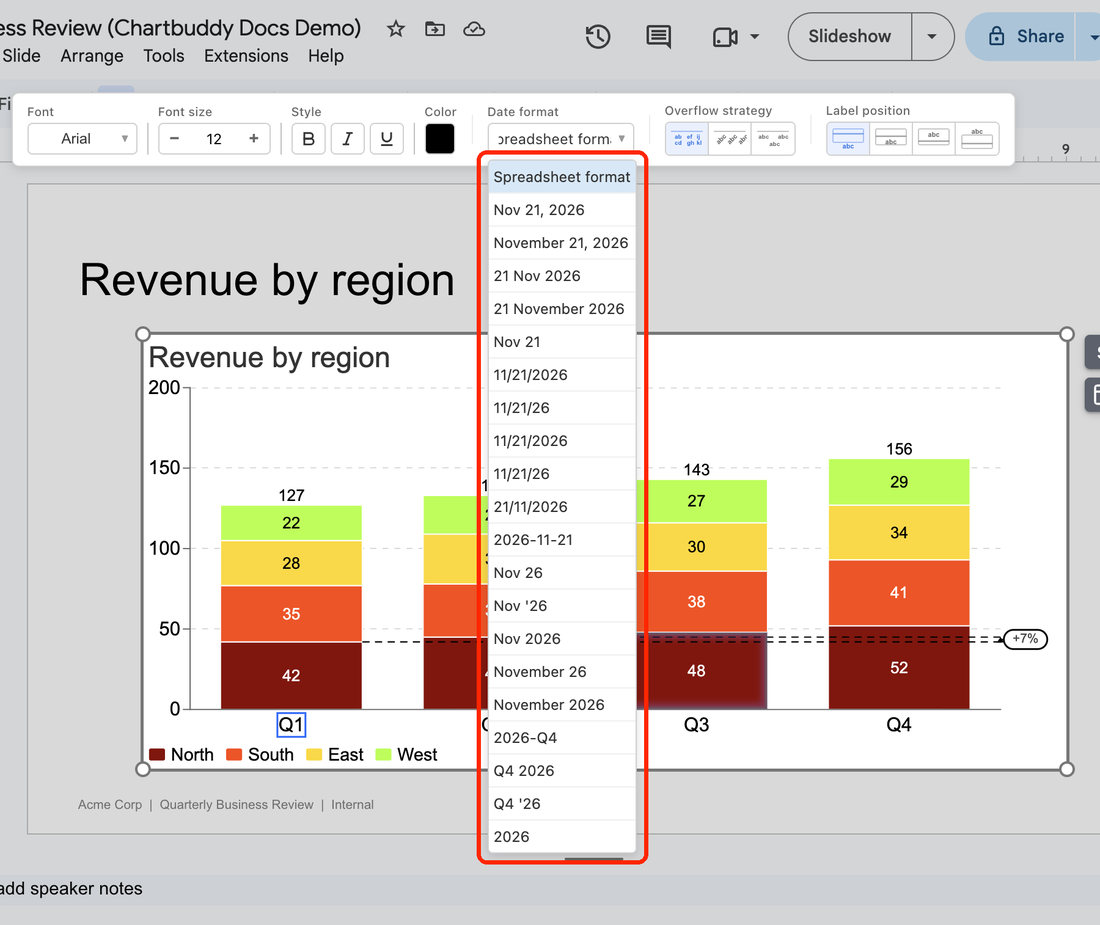
When the category axis holds dates, select its labels: the toolbar shows Date format. Choose:
- Spreadsheet format to show the dates as they are written in the data;
- or a date style such as Jan 1, 2024, January 1, 2024, 01/01/2024 or 2024-01-01. The list previews each style with the date you clicked.
Smart format
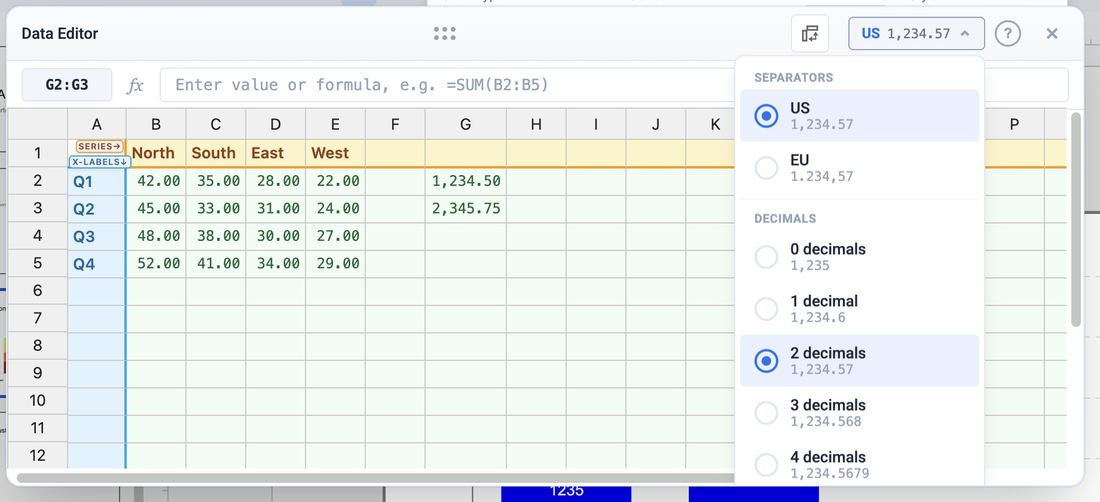
The data window reads and writes numbers in one style at a time. Click the number format indicator in its header:
- under Separators, choose US (
1,234.56) or EU (1.234,56); - under Decimals, choose 0 decimals to 4 decimals for how numbers show in the cells.
This changes how the window shows numbers, not the format on the chart.
When you paste numbers, Chartbuddy checks which style they use. If they clearly use the other style, it offers to switch the window (Switch to US or Switch to EU, or Keep US / Keep EU); if a separator is ambiguous, it asks you to Approve or Decline how it read the column. See Paste from a spreadsheet.
Related
- Data labels and totals – show and style labels
- Axes and gridlines – axis labels and their position