Appearance
Chart templates
A chart template is a saved chart you start new charts from: its type, colours, labels and annotations, with placeholder data. Templates are shared with your Chartbuddy account, so the ones you save in the extension also show up in Chartbuddy Hub and the other way around.
Start from a template
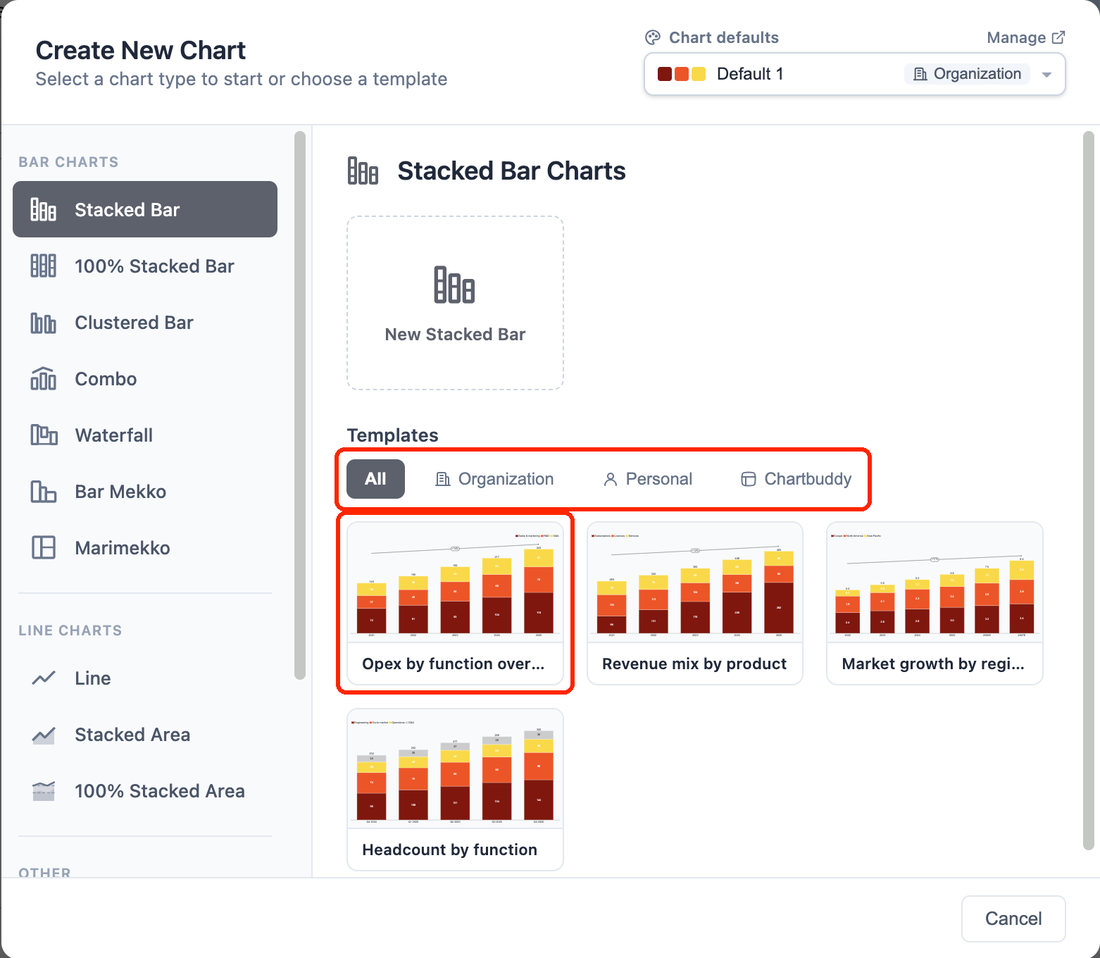
- Click Create chart on the Chartbuddy button. The Create New Chart window opens.
- Pick a chart type on the left.
- Under Templates, click a template. The chips above the list filter it: All, Organization, Personal, a project that has templates, and Chartbuddy for the ready-made ones.
To start without a template, click the New card (for example New Stacked Bar) instead.
Save a chart as a template
Open the chart in the editor.
Open the menu next to Save and choose Save as Template.
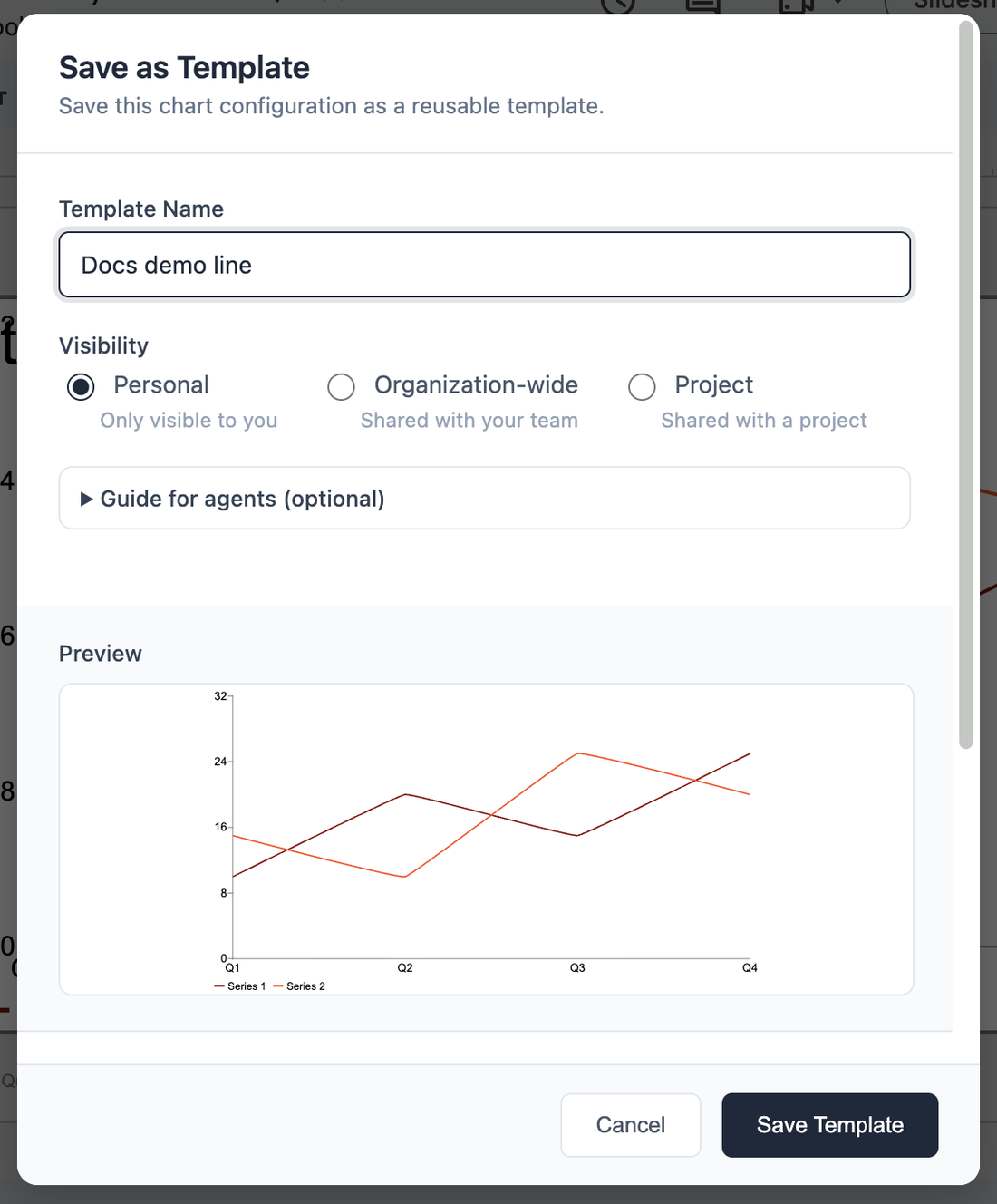
Fill in Template Name and choose where it goes: Personal (only you), Organization-wide (your team; only when you may change your organization's templates) or a project you can edit.
Check the Template cleaning options:
Option On by default What it does Replace data with default data Yes Removes your actual values Restore fills and strokes to series defaults Yes Removes colours you set on single elements Keep these colours No Charts from this template keep its colours instead of taking the chart defaults' colours Remove arrow annotations No Leaves out difference, CAGR and level arrows Clean text boxes Yes Clears the text boxes Optionally open Guide for agents (optional) and fill in Purpose, Use when, Keywords and Guidance. AI agents only pick templates that have a guide; you can also add it later in Hub.
Click Save Template, then Confirm in Do not store sensitive data in template: you confirm the template holds no sensitive, confidential or personally identifiable information.
Delete a template
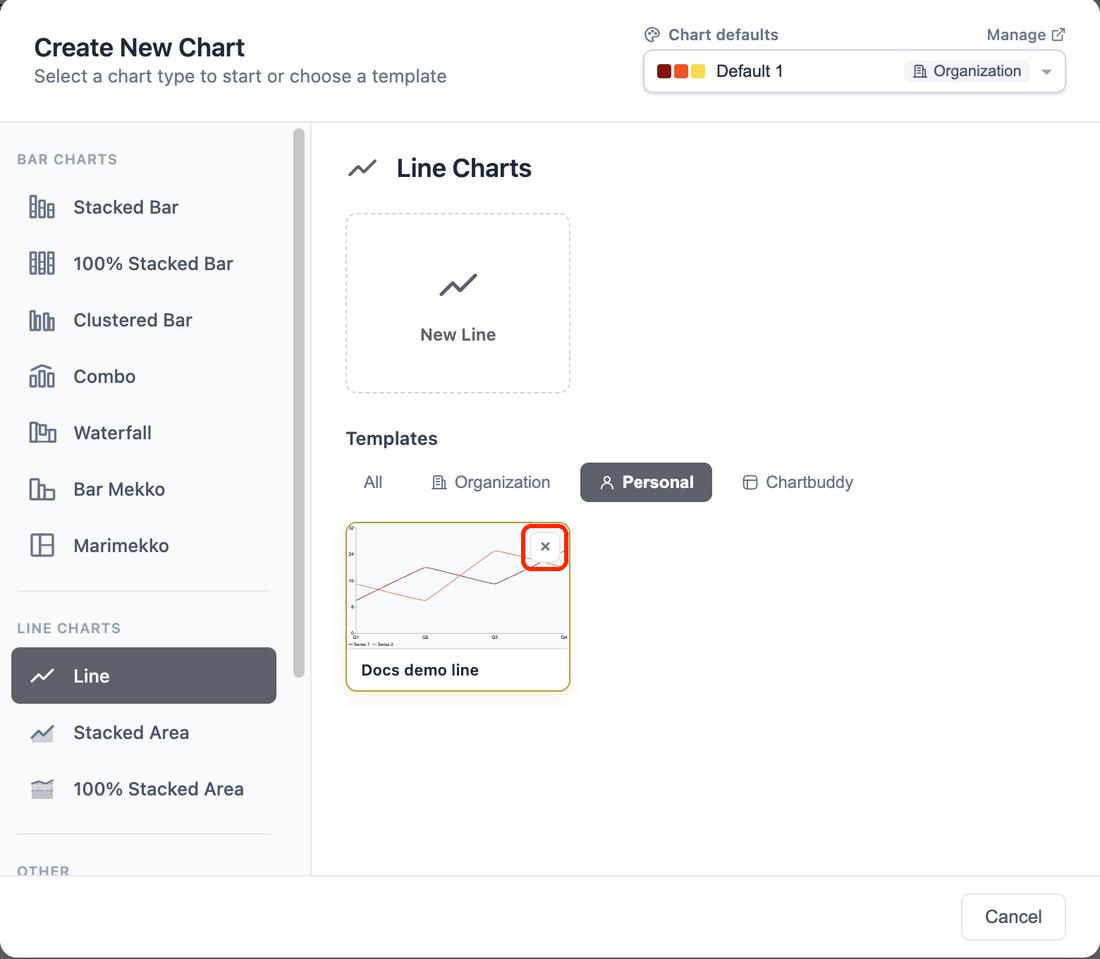
In Create New Chart, click × in the corner of a template you may change. Confirm with Delete. Templates you cannot change have no ×.
Who may change organization templates is set by your organization's admins; see Organization in the Hub docs.
Related
- Chart defaults – the house style a new chart starts with
- Saved chart templates in Hub – the same templates in the desktop app
- Save and update – saving the chart itself