
Appearance
Hub's chat and AI credit
Hub has its own chat, Chartbuddy AI. It reads your project, opens files and edits them while you watch. It is paid from your organization's prepaid AI credit; see AI credit. If you would rather use Claude, Cursor or another AI app, connect it over MCP instead.
Ask
Type in Ask for an edit… and press Enter (Shift+Enter for a new line). In a new chat you can also pick one of the suggestions under Try one of these.
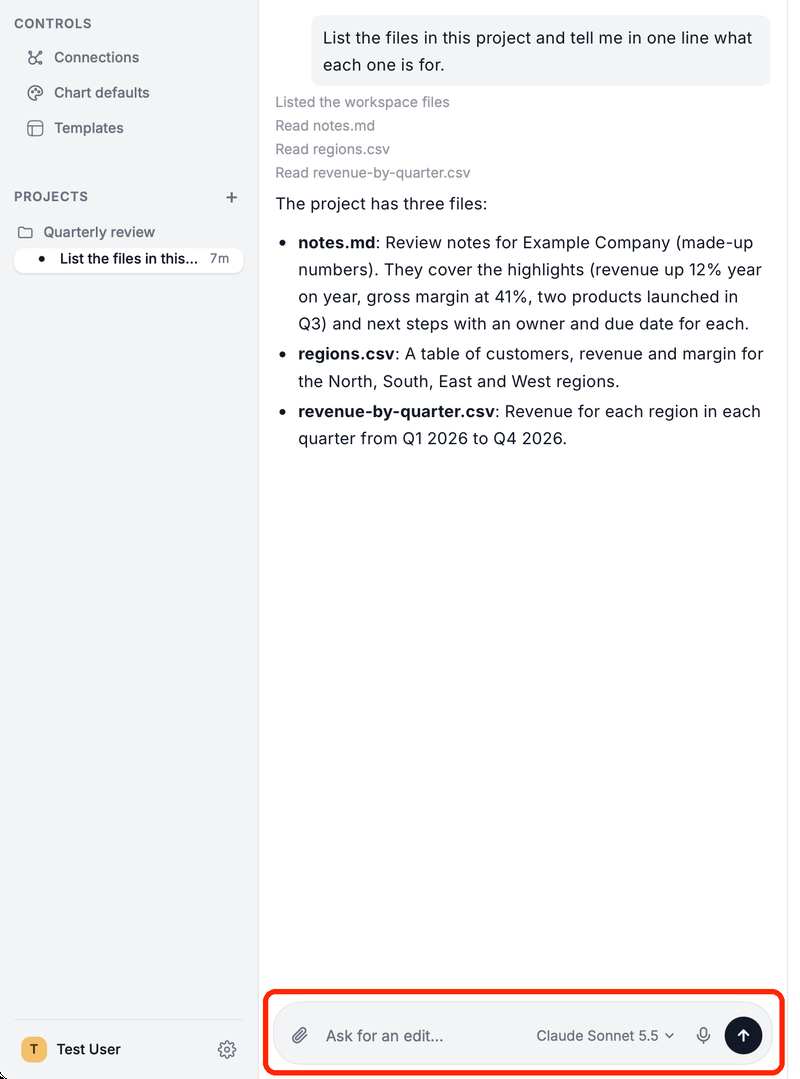
Each step the chat takes shows as a short line above its answer, such as "Read notes.md".
When it changes files, Changed files lists them with the number of edits. The files are saved where they are.
Click the send button again while it works to Stop.
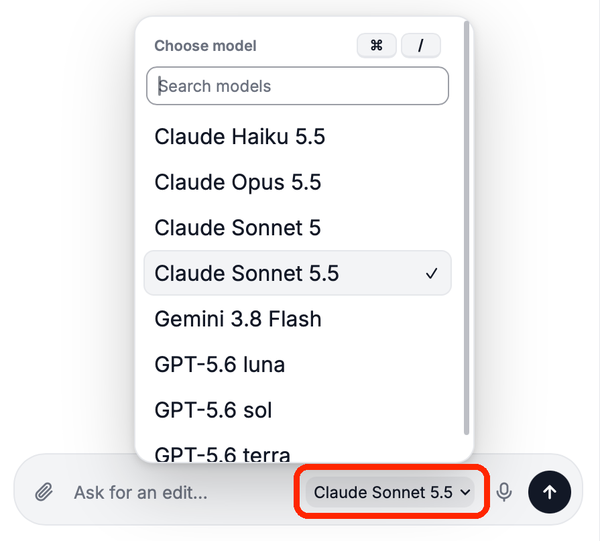
The model menu next to the send button (Choose model, ⌘/ on a Mac, Ctrl+/ on Windows) picks the model, when your organization has more than one.
The microphone (Dictate, Alt+Space) turns speech into text on your computer. Nothing is sent anywhere.

Hover over one of your messages to continue the conversation from there.
Changes ask first
When the chat wants to change something outside the open file, such as a project setting, a card asks Apply this change? with Cancel and Apply. An MCP connector tool that can change data asks Allow once, Always allow or Deny.
Mention files with @
Type @ to pick a file from the project or a connector. Images, PDFs, CSV, TSV, text and JSON files you mention are attached to your message. PowerPoint, Excel, Word and Markdown files are opened instead, so the chat can edit them.
Attach files

Click the paperclip (Attach files), drop files on the chat, or paste them. You can attach .csv, .tsv, .txt, .md, .json, .pdf, .pptx, .xlsx, .docx and images (.png, .jpg, .gif, .webp). Files can be up to 25 MB, images up to 5 MB.
In this section
- MCP connectors – give the chat tools from Notion, Linear and other services