
Appearance
MCP connectors
MCP connectors let the Hub chat use tools from other services, such as a data warehouse, a tracker or an internal API. They use MCP, the standard that ChatGPT, Claude and Cursor also use. Ask for "our 2025 revenue by quarter as a chart" and the chat gets the numbers from the connector before it builds the chart.
This is the opposite of Connect MCP. That page lets other AI apps use Hub. Connectors let Hub's chat use other services.
Add a connector
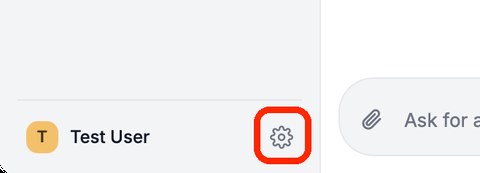
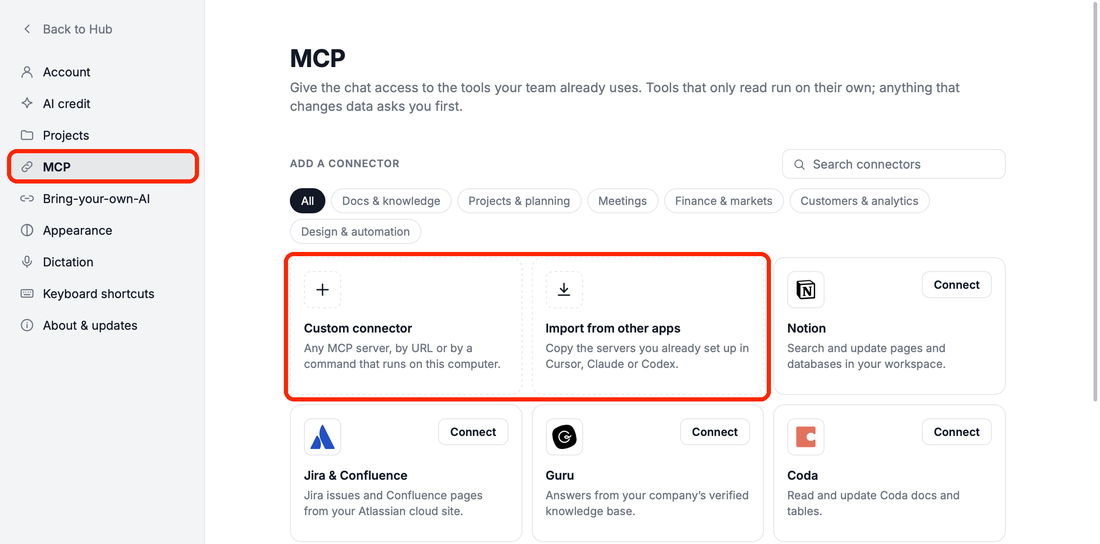
Open Settings → MCP: click the gear at the bottom of the sidebar, then MCP.
Suggested connectors
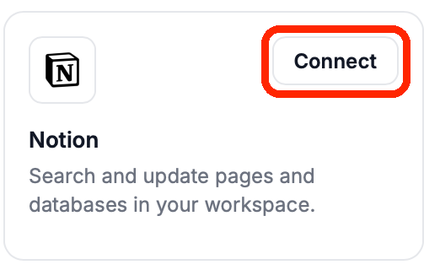
Under Add a connector, Hub suggests services you can connect in one click, such as Notion, Linear, Stripe or Zapier. Search the list or filter it by category. Click Connect, sign in to the service in your browser, and the connector is ready.
You sign in with your own account, so the chat only sees what you can see. S&P Global, Morningstar and Daloopa also need a subscription with that provider. Through Zapier, the chat can reach apps that have no connector of their own, such as Workday, BambooHR or Salesforce.
Some well-known services are not listed because they only let apps they have approved connect. Figma, Slack, Box, HubSpot and GitHub are examples.
Your own
Click the Custom connector card, then pick URL or Command at the top.
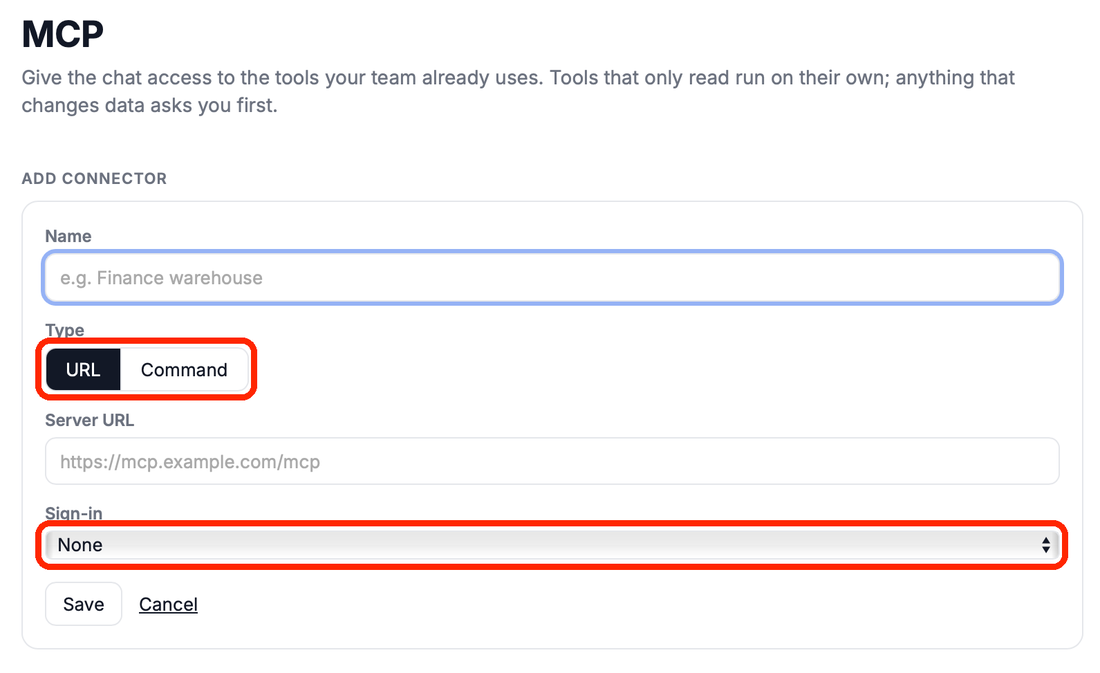
- URL: paste the server address, for example
https://mcp.example.com/mcp. If the service needs a sign-in, choose Sign in with the service (OAuth). Hub opens your browser, and you never type a password into Hub. Some services give you a key instead; choose Key in a header for those. - Command: for a server that runs on your computer, such as
npx -y @example/mcp-server. It runs with your permissions, so only add servers you trust. - Import from other apps: Hub lists the MCP servers you already set up in Cursor, Claude or Codex, and you pick the ones to add.
Keys and sign-ins are stored in your computer's secure storage, not in a settings file.
After you add a connector, Hub connects to it and lists its tools. Click a connector to see them. You can switch off any tool you don't want the chat to use.
Reads run, changes ask
A tool that the server marks as read-only runs straight away. Any other tool could change data, so the chat stops and shows you the connector, the tool and what it will send. You can choose:
- Allow once
- Always allow, for this tool from now on. You can undo this in Settings.
- Deny. The chat is told not to try again.
Mention a connector
Type @ in the chat to see your connectors next to your files. Mention one to tell the chat to use it, for example "@Finance what was revenue in Q3?".
For organization admins
On the dashboard, Connectors is where you:
- add connectors for everyone in your organization, either for members to switch on themselves, or with Always on for everyone so members cannot switch them off;
- choose whether members may add their own connectors, and whether those may run a command on their computer;
- set an allowlist of URLs and commands that members' own connectors must match.
*matches anything.
A shared key you set for a connector is sent to every member's Hub, because Hub calls the server directly. Where the service supports it, prefer having each member sign in. Hub applies changes within a minute.