Appearance
Set a chart default set for use with a client
Give each client a project, and give that project its own chart defaults in the client's colors and fonts. Every new chart in the project's decks then starts in the client's style, whoever makes it: you, a colleague, the chat or your AI app.
Only the project owner, its administrators and organization admins can set a project's chart defaults. Members use them.
1. Make a project for the client
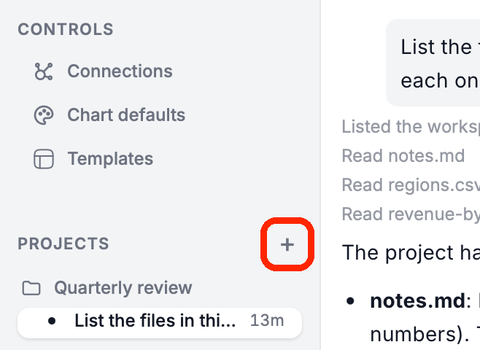
Click + next to PROJECTS, type the client's name as Name and click Create project.
Already have a project for this client? Use that one. More in Projects.
2. Create the client's set
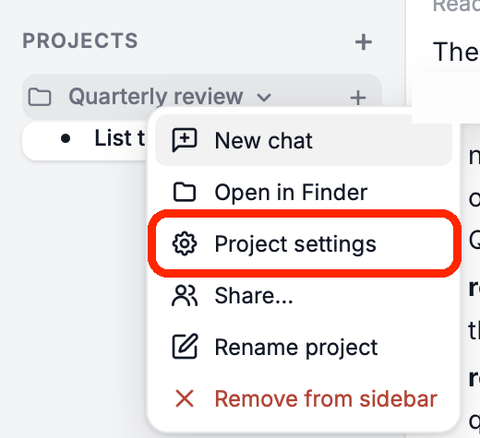
Right-click the project and choose Project settings.
Click Chart defaults in the icon strip.
Open the Project default menu and choose New set for this project.
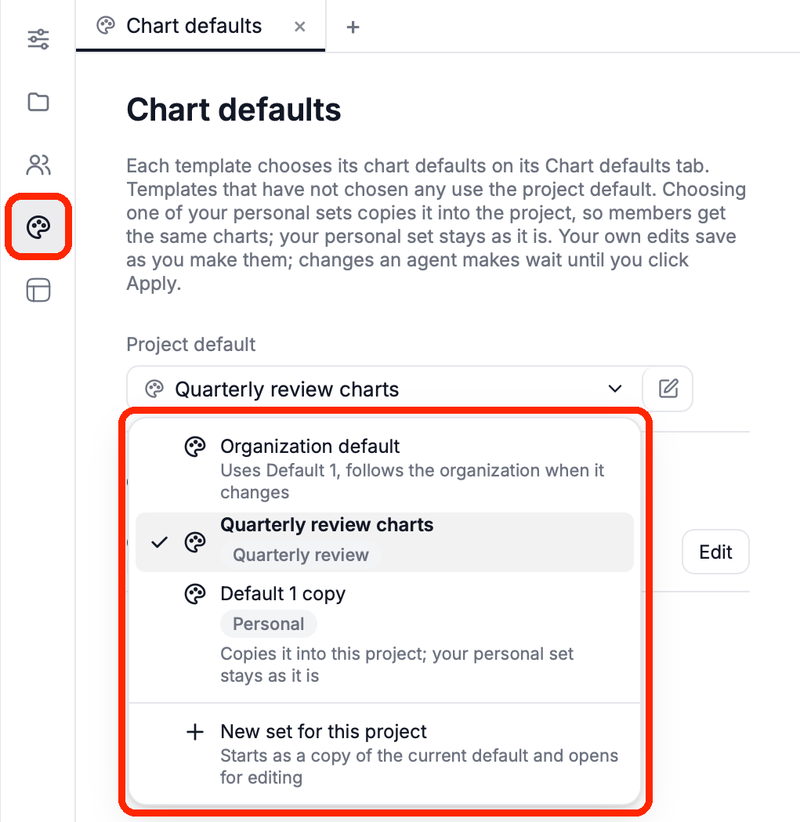
Hub makes a set named after the project (for example "Acme charts"), starting as a copy of the current default, makes it the project default and opens it for editing.
Already made a personal set for this client? Choose it in the same menu instead: Hub copies it into the project, and your personal set stays as it is.
3. Style it
Go through the editor's steps, Colors to Gridlines. The preview shows the result, and your changes save as you make them.
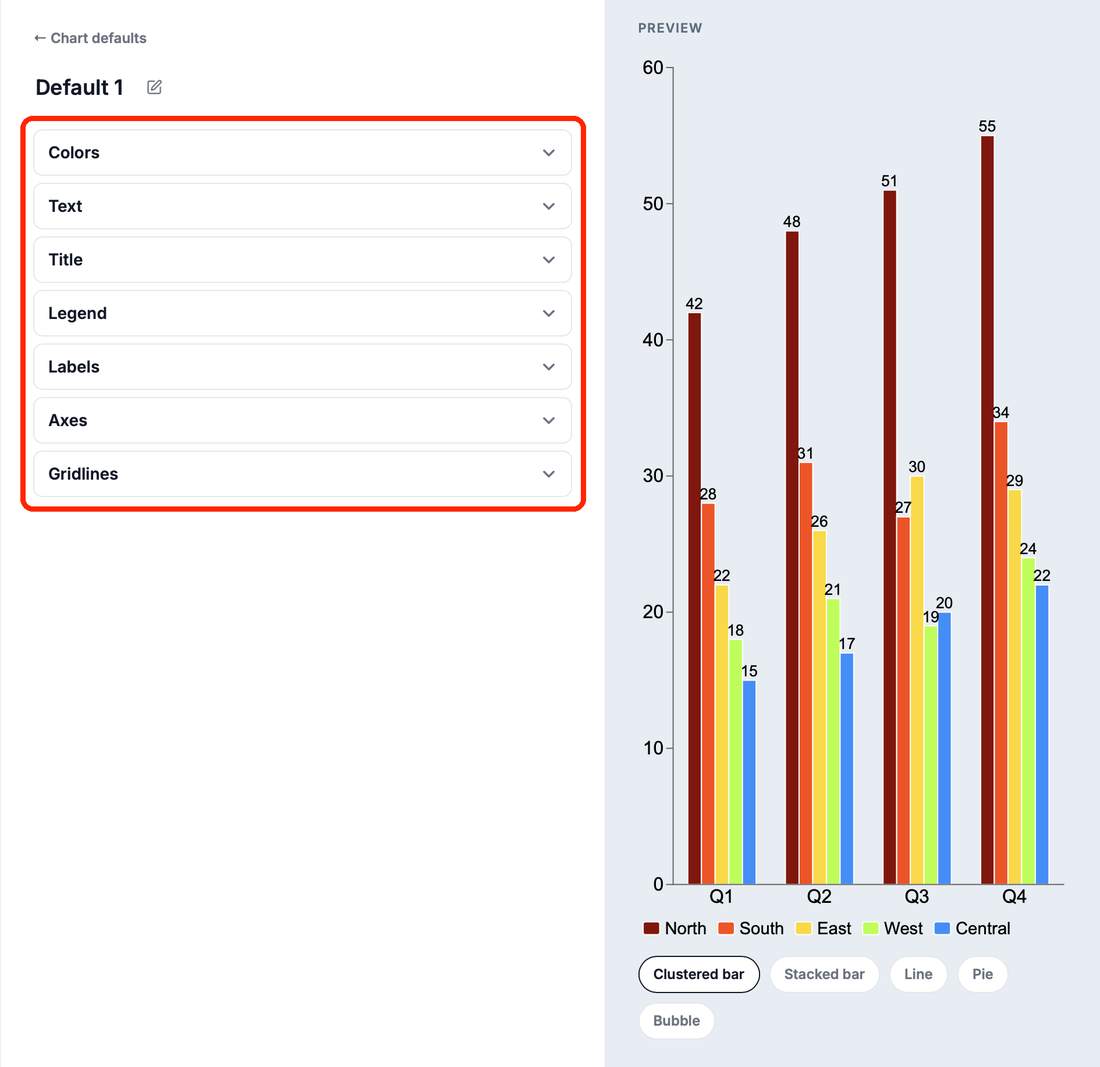
On Colors and Text, Import takes the colors and font from one of the client's presentations.
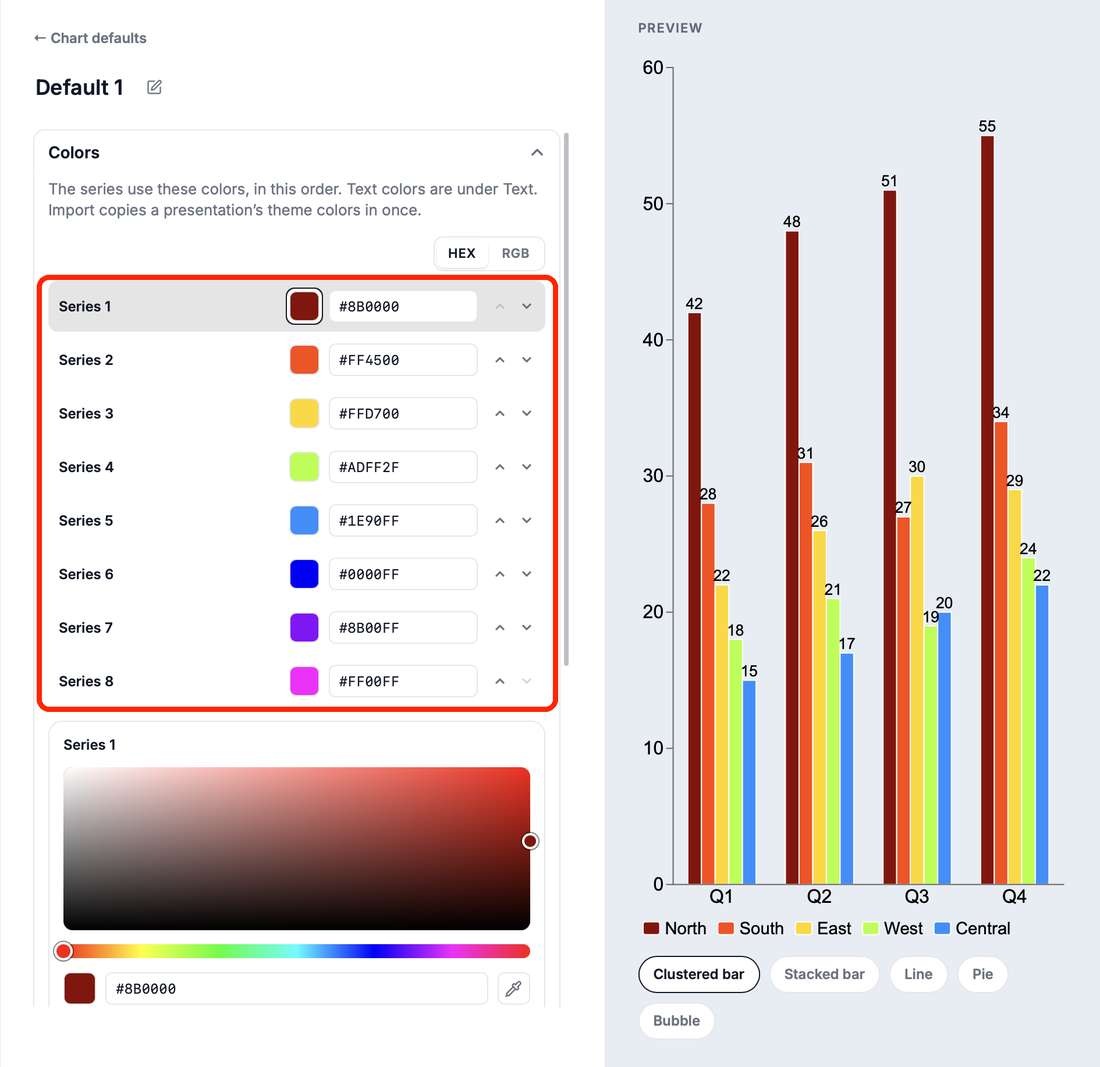
What each step sets: What a set contains.
4. Share it with your team
Add the colleagues who work for this client: right-click the project, choose Share… and add them. They get the set on their next sync. See Members, roles and sharing.
What uses it
- New charts in the project's decks use the project default, also when the chat or an AI app makes them.
- A template can have a set of its own: open the template's guide, its Chart defaults tab, and pick Choose chart defaults or New set for this template. Chart defaults in use in the project settings shows which template uses which set.
- Charts made before stay as they are. Ask the chat to apply the house style to restyle one.
Related
- Chart defaults – levels, which set a new chart gets, and the editor
- Set chart defaults for my organization – the set a project uses until it has its own
- Use a presentation template with my team – add the client's recurring deck to the project