
Appearance
Using a PowerPoint template
Once a project has a PowerPoint template with a guide, you make each new edition by asking for it. An edition is one presentation made from the template, such as this quarter's review. To set up a template, see Creating a PowerPoint template.
Make a new edition
Ask in the project's chat, in your own words, for example "make this quarter's review" or "the weekly sales post, with this week's numbers".
The assistant:
- Reads the guide: its purpose, how it is made, the brand rules, the naming rule and what each slide gets
- Reads the last edition as an example, without changing it. If the guide changed since that edition was made, it tells you.
- Asks you for what it is missing, such as this quarter's numbers, before it makes the file. It does not make numbers up.
- Makes the new presentation: a copy of the template in the project folder, named by the guide's file name rule
- Goes slide by slide by each slide's role, and replaces every
{{placeholder}}with what its field says - Checks the result: it reads the new presentation back and makes sure no placeholder is left
Hub opens the presentation next to the chat, so you can follow along and ask for changes. PowerPoint does not need to be installed. Each edition remembers which template and which version of the guide it came from.
Change one edition
Say it in the chat. Some examples:
- "This time only North and West": a slide with One copy per item gets copies for the items you name, instead of the guide's usual list.
- "Last quarter's review, with this quarter's numbers": the assistant reads the most recent edition, keeps what stays the same and changes what should change.
- "Use Anna's last edition as the example": the editions your colleagues made in the project count too.
To fix a presentation you already made, such as a wrong number, ask the assistant to change that file. It edits it in place instead of making a new one.
Start from an empty copy
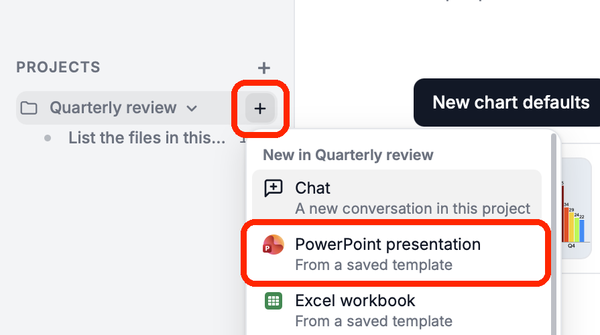
To fill in a presentation yourself, click + next to the project and choose PowerPoint presentation.
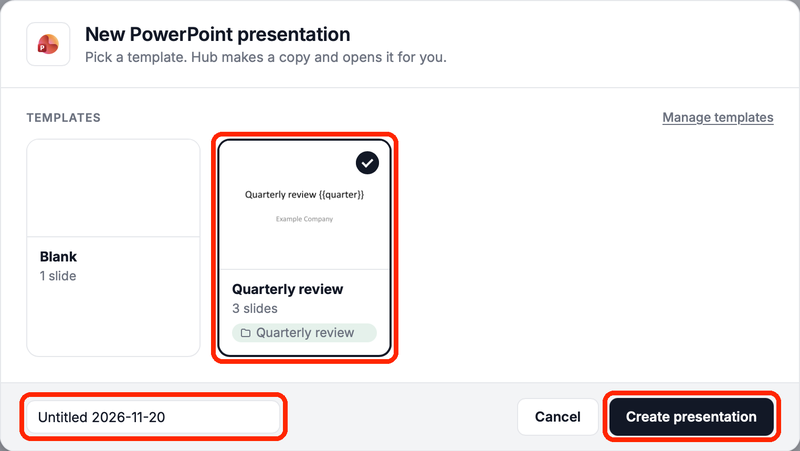
Pick the template, type a File name and click Create presentation. Hub saves the copy in the project folder and opens it. Nothing is filled in.
From another AI app
An AI app connected to Hub, such as Claude or ChatGPT, can make editions too: ask it for the presentation and it uses the same project, guide and earlier editions.