
Appearance
Use a presentation template with my team
Put the template in a project, add your colleagues and write the template's guide once. After that, anyone in the project gets a new edition by asking the chat for it. Steps 1 to 4 are done by whoever sets the project up; step 5 is for everyone.
1. Create a project
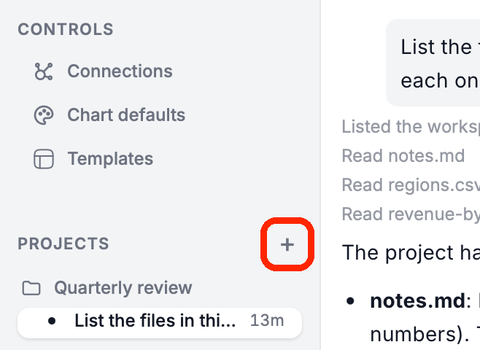
Click + next to PROJECTS.
Type a Name and click Create project.
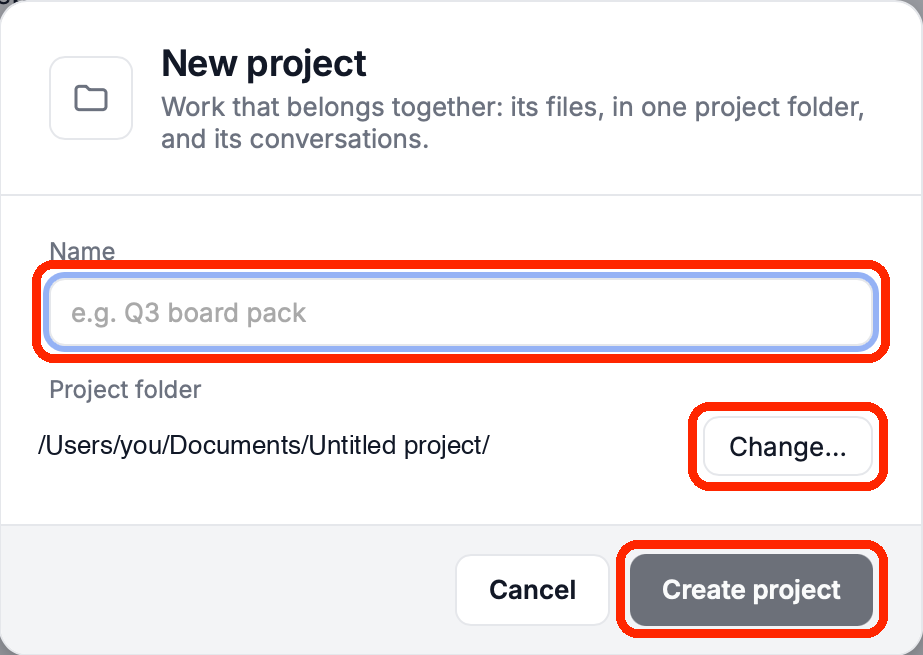
You are the project's owner. More in Projects.
2. Add your colleagues
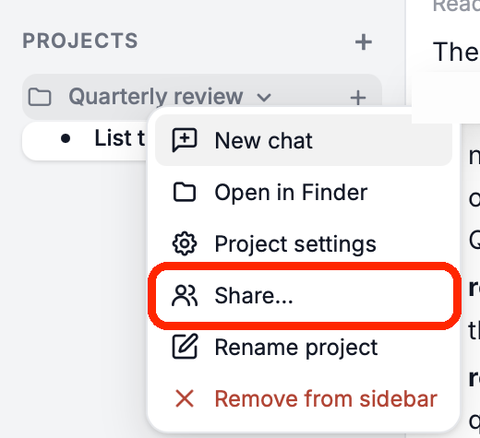
Right-click the project and choose Share….
Under Add someone to this project, choose a colleague and a role, then click Add to project.
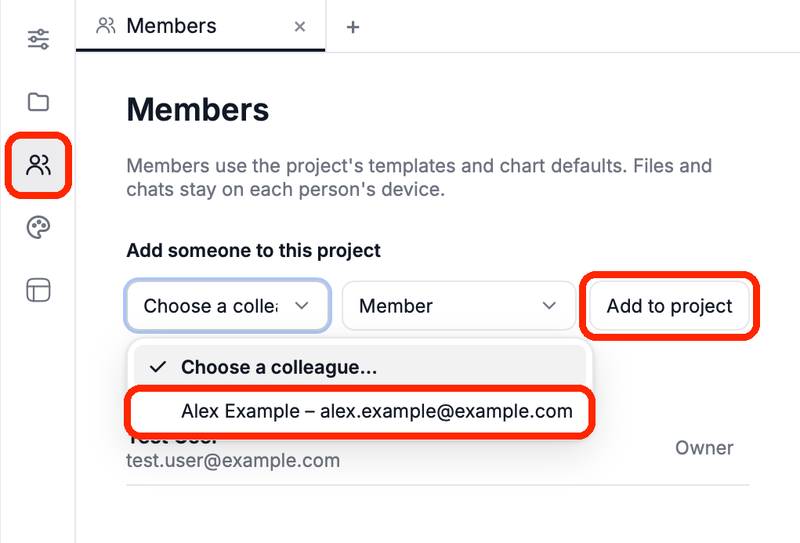
Give Member to people who only make editions, and Administrator to people who may also change the template and its guide. Colleagues must be in your organization first. More in Members, roles and sharing.
3. Add the template
- Right-click the project and choose Project settings, then click Templates in its icon strip.
- Click Add template and choose the kind: Google Slides link or PowerPoint file.
- For Google Slides, type a Name, paste the link and click Add. For PowerPoint, click Choose a file… and pick the
.pptxor.potx.
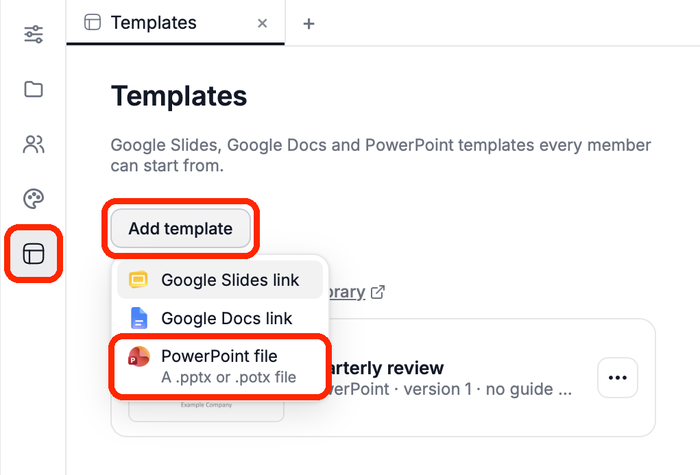
Members get the template on their next sync. How to prepare the file with {{placeholders}}: Creating a Google Slides template or Creating a PowerPoint template.
4. Write the guide
The guide tells the assistant how an edition is made: its purpose, where the numbers come from, the file name and what each slide gets.
Click the template in the project's Templates list. Its guide opens.
Click Write guidance with AI. The assistant reads the template, asks what it cannot see in the file and proposes a guide.
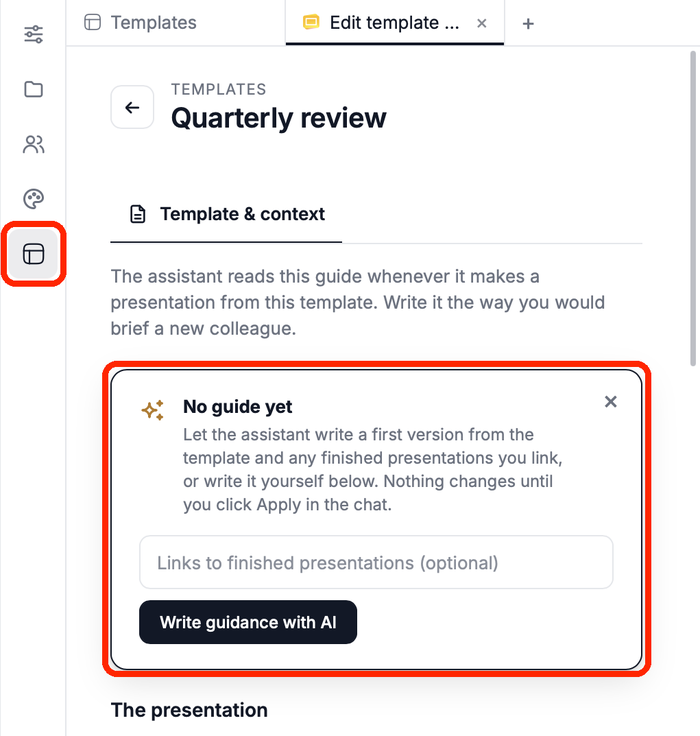
Check the proposal and click Apply in the chat. Edit any field afterwards; changes save as you type.
Only the project owner and administrators can change a guide. Every field and slide role: the guide.
5. Ask for a new edition
Everyone in the project does this.
Click + next to the project and choose Chat.
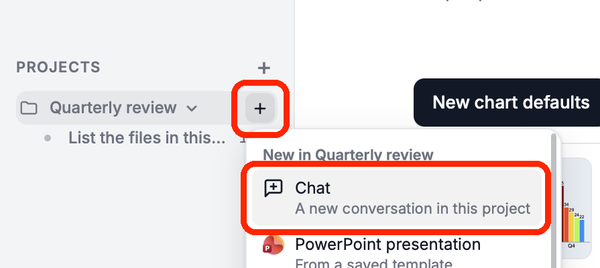
Ask for the deck in your own words, for example "make this month's board update".
The assistant reads the guide and the last edition, asks for any numbers it is missing, makes the new deck and fills it slide by slide. More in Using a Google Slides template and Using a PowerPoint template.
Related
- Template library – personal and organization templates
- Members, roles and sharing – what each role can do and what is shared
- Set a chart default set for use with a client – give the project's charts their own style