Appearance
The Connections page
Connections shows which AI works with Hub and where Hub edits your decks.
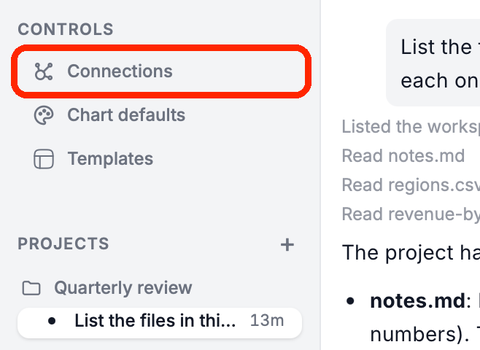
Click Connections under CONTROLS in the sidebar.
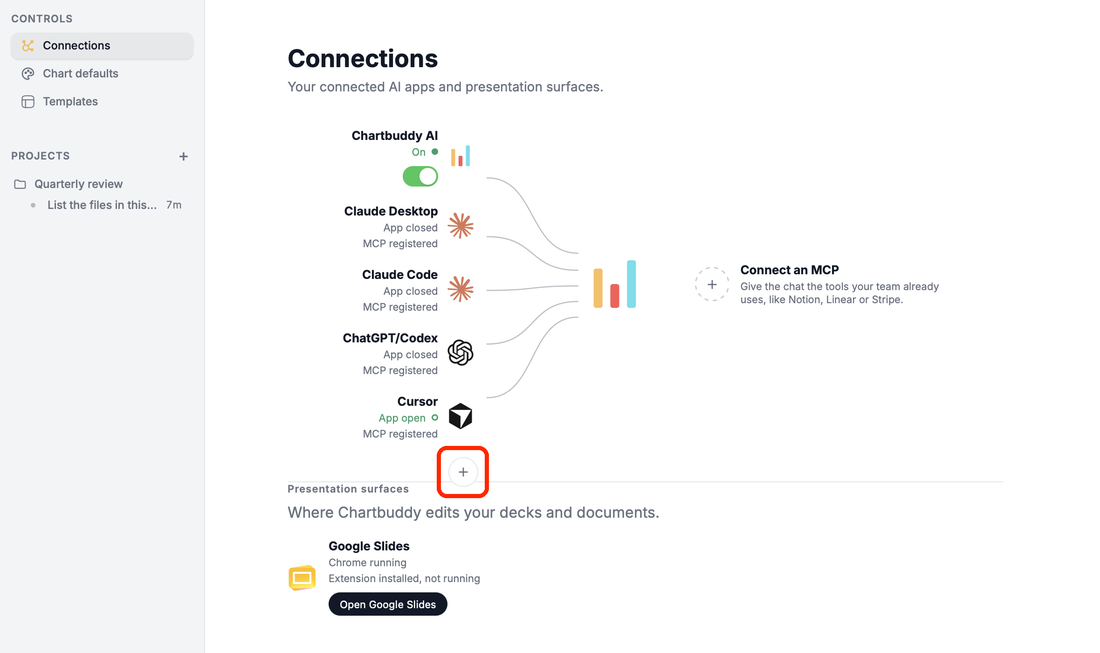
- Chartbuddy AI: On, Off, or No AI credit left with Add credit. Organization admins turn it on or off with the switch; others see Ask an organization admin to turn on AI. See Hub's chat and AI credit.
- Your AI apps: each app you connected over MCP, with App open or App closed and MCP registered. Click + below them to connect another one (it opens Settings → Bring-your-own-AI). See Connect MCP.
- Connect an MCP: give the chat tools from other services. See MCP connectors.
- Presentation surfaces: Google Slides, with whether Chrome and the Chartbuddy extension are running. Open Google Slides opens it; when the extension is missing, a button installs it.