
Appearance
Ensure only admins can change chart defaults
By default every member of your organization can change the organization's templates, chart defaults, fonts and colors. Choose Only admins and only organization admins can; members keep using them. Project chart defaults are already limited to each project's owner and administrators.
Only organization admins can do the steps below.
1. Choose Only admins
- In Hub, click the gear at the bottom of the sidebar, then Account › Open dashboard.
- Open Settings.
- Under Who can change templates, chart defaults, fonts and colours, choose Only admins (the default is Everyone). It saves straight away.
To let a few people change them too, choose Admins and people you choose instead and turn them on under Users, in the column Can change templates, chart defaults, fonts and colours.
2. Keep project roles tight
In each project, only the owner and people with the Administrator role can change its chart defaults, templates and guides. Organization admins can do this in every project.
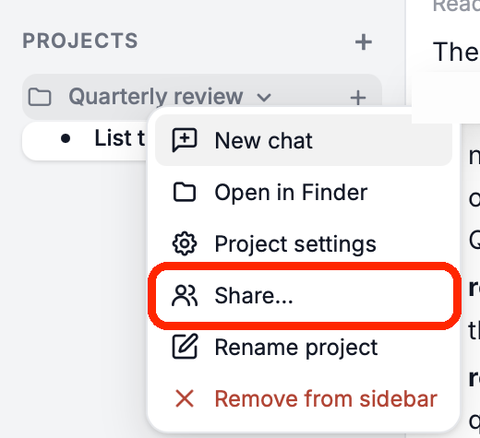
Right-click the project and choose Share….
Give colleagues who should only use the chart defaults the Member role.
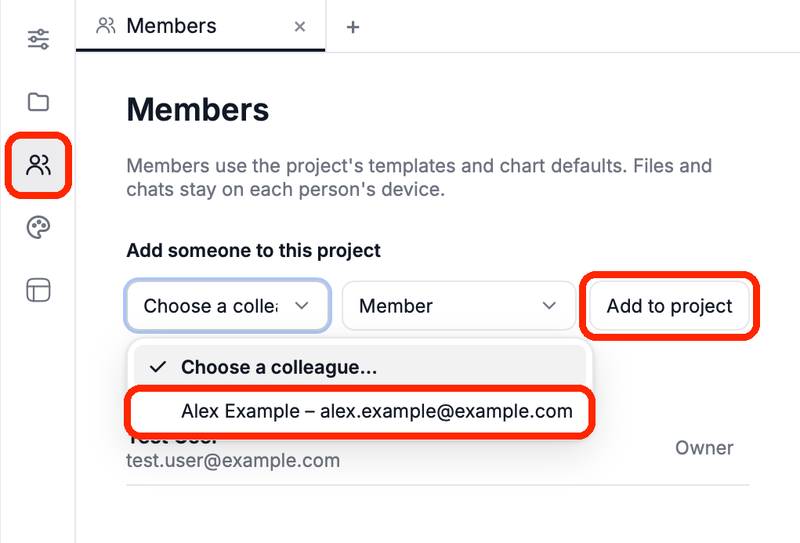
More in Members, roles and sharing.
What members see
- On the Chart defaults page in Hub, the organization set no longer opens for editing, and its row shows "Your organization's admins manage these chart defaults. Duplicate them to make your own version." Duplicate gives them a personal copy that only they use.
- In a project's settings, the organization set has no Edit button for them.
- New charts still use the organization and project sets as before.
Choose Everyone again to let every member edit.
Related
- Chart defaults – who can change each level
- Set chart defaults for my organization – style the organization set
- Organization – the dashboard and its pages