
Appearance
Creating a PowerPoint template
A PowerPoint template is a .pptx or .potx file your project starts each new edition from, such as the weekly sales update or the quarterly review. Hub keeps the file and gives every project member the same version. Its guide tells the assistant how an edition is made, so "make this quarter's review" gives you a presentation that looks like the last one without you explaining it again.
Only the project owner and administrators can add or replace templates and change guides. Other members can read a guide.
1. Prepare the file in PowerPoint
Start from a finished edition, or a presentation in your house style.
- Replace the text that changes each edition with a placeholder: a name in double braces, in lower-case words joined by
_. For exampleQuarterly review {{quarter}},{{top_region}} grew mostorRevenue {{revenue_total}}. - Every number in the text changes each edition, so it gets a placeholder too.
- Keep headings, labels and fixed wording as they are.
- Put instruction or example slides in if they help, and give them the role Delete in the copy later.
2. Add it to the project
- Click Templates in the project's icon strip
- Click Add template and choose PowerPoint file
- Pick a template already saved in Hub and click Add to project, or click Choose a file… for a
.pptxor.potxof up to 100 MB
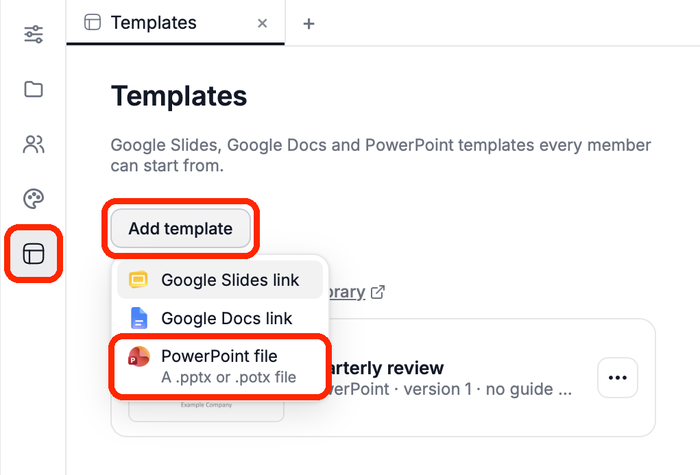
The template appears under In this project as "PowerPoint · version 1", with no guide yet or has a guide. Members get it on their next sync.
3. Write the guide
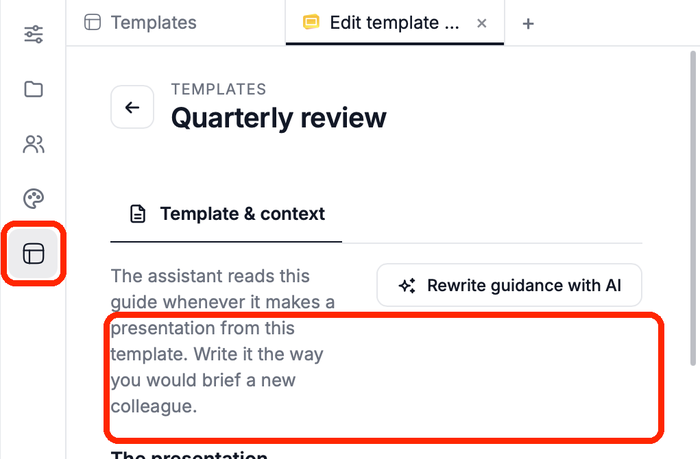
Click the template in the list. Its guide opens in an Edit template tab. Changes save as you type; the top of the guide shows when it was last saved.
Write it the way you would brief a new colleague. The assistant reads it every time it makes a presentation from this template.
Let the assistant draft it
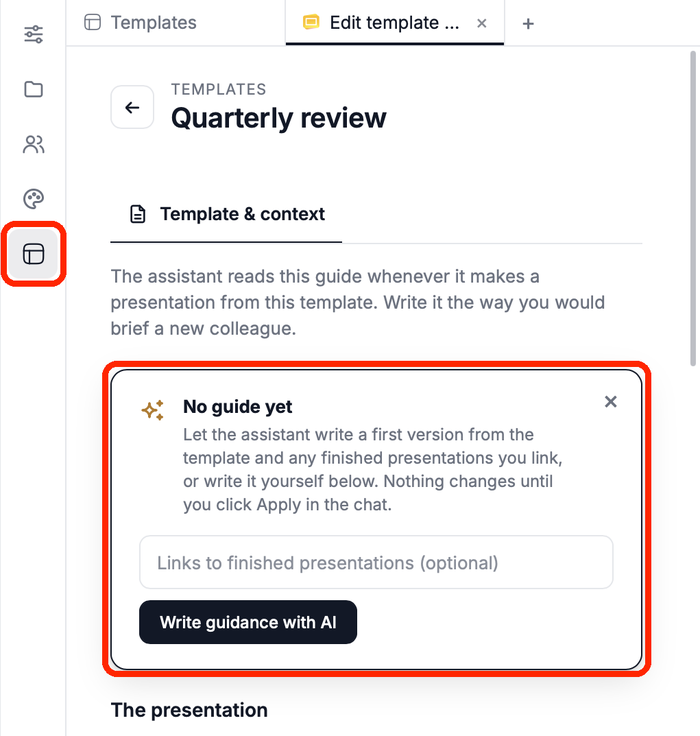
While there is no guide yet, click Write guidance with AI. The assistant reads the template, asks you what it cannot see in the file (what the presentation is for, how often you make it, where the numbers come from) and proposes a guide. Nothing changes until you click Apply in the chat.
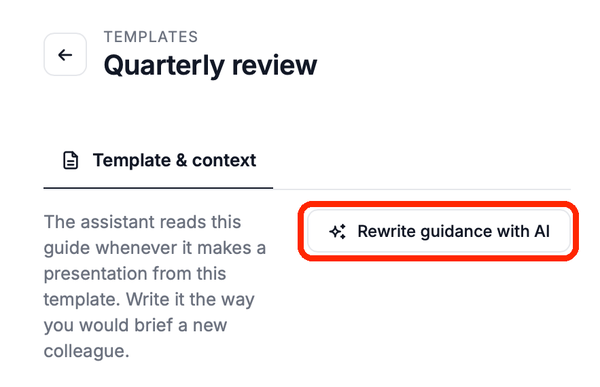
Once a guide exists, Rewrite guidance with AI redrafts it the same way.
If the project already has editions, ask in the chat to draft the guide from them: the assistant compares them, sees which slides change and which stay, and proposes roles and fields you can edit.
Check the draft and fill in what the assistant could not know, especially where the numbers come from.
The presentation
The top of the guide describes the presentation as a whole.
| Field | What to write | Example |
|---|---|---|
| Purpose | Who it is for and what it answers | "Quarterly review for the management team: revenue per region and the highlights." |
| How it is made | The steps, and where the numbers come from | "Revenue from revenue-by-quarter.csv in this project; highlights from notes.md." |
| Brand rules | One rule per line, up to 20 | "Body text never below 14 pt" |
| Cadence | How often a new one is made | Weekly, Every two weeks, Monthly, Quarterly or When needed |
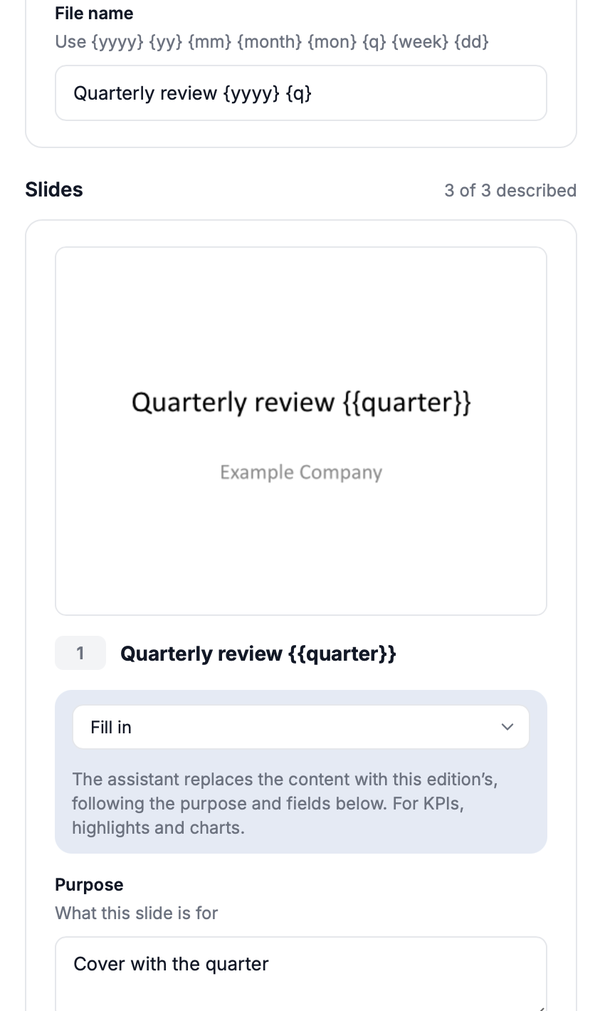
| File name | How each edition is named, with date tokens | Quarterly review {yyyy} {q} gives "Quarterly review 2026 Q4" |
How it is made matters most: name the actual sources (a file in the project, an export, a report), in the words your team uses. The assistant asks for anything it cannot find there, and never makes numbers up.
The File name tokens are filled in with the date of the new edition:
| Token | Becomes |
|---|---|
{yyyy} / {yy} | Year: 2026 / 26 |
{mm} / {dd} | Month / day as two digits: 11 / 20 |
{month} / {mon} | Month name: November / Nov |
{q} | Quarter: Q4 |
{week} | Week number (ISO) |
The slides
Below the presentation, the guide lists every slide of the template with its thumbnail (click it to enlarge), and counts how many are described. For each slide, set a role, a purpose and its fields.
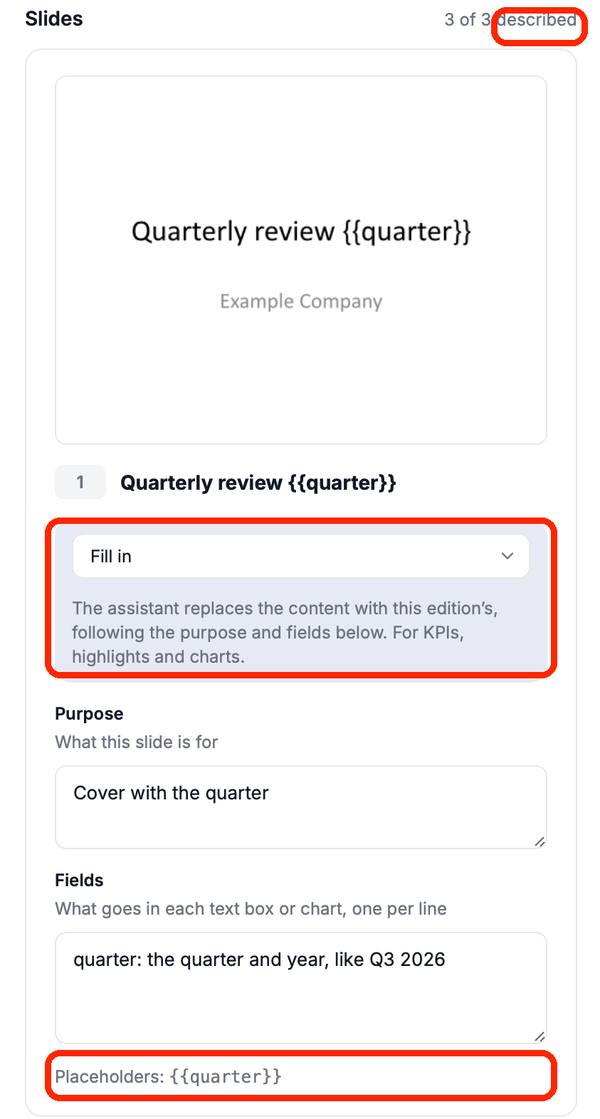
Role says what the assistant does with the slide:
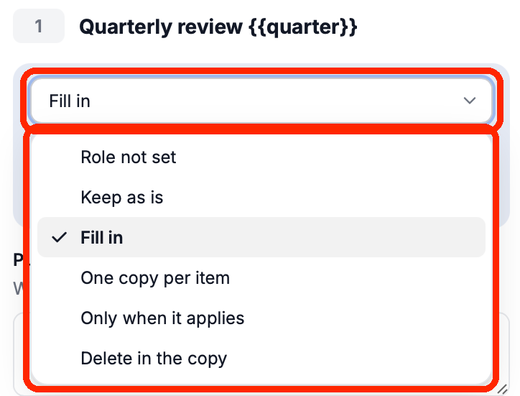
| Role | What the assistant does | Use it for |
|---|---|---|
| Keep as is | Leaves the slide exactly as it is | The cover, agenda, method or contact slides |
| Fill in | Replaces the content with this edition's, following the purpose and fields | KPIs, highlights and charts |
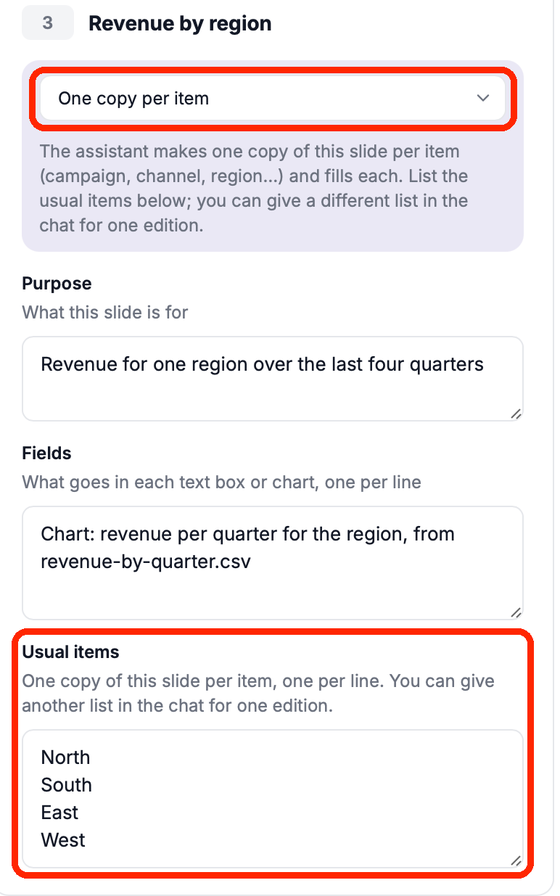
| One copy per item | Makes one copy of the slide per item and fills each | One slide per region, campaign or channel |
| Only when it applies | Keeps and fills the slide only when its purpose applies this time, otherwise deletes it | Incidents, promotions, seasonal slides |
| Delete in the copy | Always deletes the slide from the new presentation | Instruction or example slides in the template |
A slide without a role is kept as it is, unless you ask otherwise.
Purpose says what the slide is for, such as "The three biggest wins of the quarter, each with a number". The assistant uses it to decide what belongs on the slide, and for Only when it applies, whether the slide is needed this time.
Fields say what goes in each text box or chart, one per line, as name: instruction:
quarter: the quarter and year, like Q3 2026
highlights: three bullets from notes.md, each with one number
Chart: revenue per quarter for the region, from revenue-by-quarter.csv
Give every placeholder on the slide a field with the same name. Under the fields, the guide lists the slide's placeholders and warns you about one with No field yet, and about a field whose placeholder is Not in the slide any more.
Usual items appear only for One copy per item: the items to make a copy for, one per line, up to 30. The assistant uses this list unless you give another one in the chat for one edition.
Tips for a good guide
- Write instructions a colleague could follow without asking you: where the number comes from, how many bullets, what to compare with.
- Describe every slide, even the ones you keep. "3 of 3 described" at the top of the slides means nothing is left to guesswork.
- Put house rules that apply to every slide in Brand rules, not in each slide's fields.
- Keep placeholder names stable between versions of the template. Editions and guides refer to them by name.
Publish a new version
- Under Templates in the project's icon strip, open … on the template
- Click Replace with a file… and choose the new
.pptxor.potx
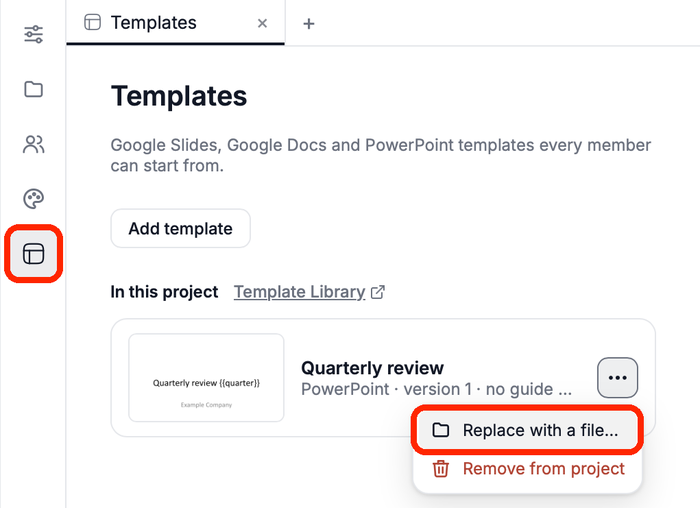
The version number goes up and members get it on their next sync. Editions made before the change stay as they were.
When the new version drops slides, their guidance is not lost. The guide keeps it under Guidance for slides no longer in the template: use Move to slide… to attach it to another slide, or Remove it. The Templates list also says when a guide entry has no slide in this version.
If a colleague uploaded a new version while you were editing yours, Hub takes their version and keeps your edit aside. The template shows Show your copy and Upload your copy, so you can choose which one stays.