Appearance
First launch and the main window
What you see the first time you open Hub, and how the main window is laid out.
Sign in and set up
- Sign in. Hub opens on Welcome. Choose Continue with Google, Continue with SSO or Continue with email. A browser window opens to finish signing in.
- Accept the terms. Tick I have read and agree to the Terms of Service and Privacy Policy and click Continue.
- Choose how you work with AI. Pick Chartbuddy AI (Chartbuddy runs the models, paid from your organization's AI credit) or Bring your own AI client (Claude, Cursor or another app over MCP). You can add the other later in Settings.
- Click Open Hub. If you have no projects yet, Hub creates My First Project and opens a chat in it.
The main window
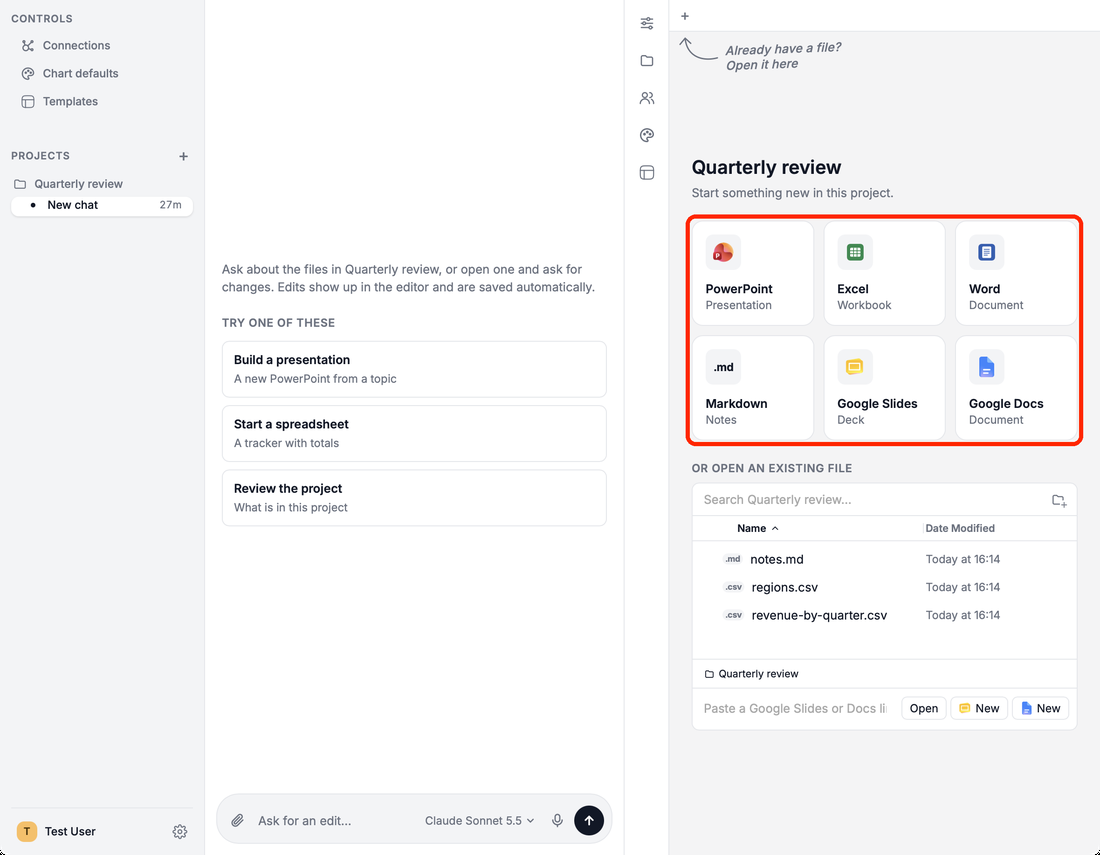
- Sidebar. Under CONTROLS: Connections, Chart defaults and Templates (see Templates and chart defaults). Under PROJECTS: your projects and their chats. At the bottom: your account and the Settings gear.
- Chat. Type in Ask for an edit…. See Hub's chat and AI credit.
- Project start page. Start something new in this project. offers PowerPoint, Excel, Word, Markdown, Google Slides and Google Docs. Below it, Or open an existing file lists the project folder. See Google and Office files.
- Icon strip between the chat and the file pane, from top to bottom: General, Files, Members, Chart defaults and Templates.