
Appearance
Members, roles and sharing
Add colleagues to a project to share its templates and chart defaults. Files and chats are not shared: they stay on each person's computer.
Add someone
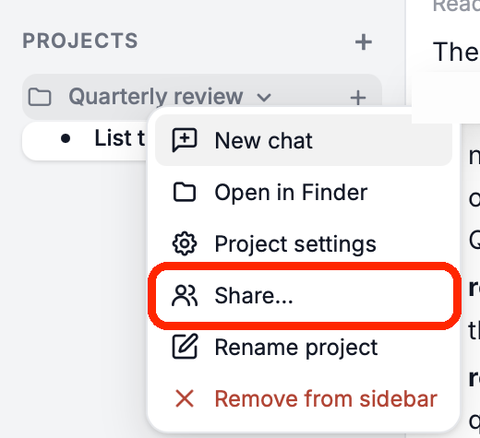
Right-click the project and choose Share….
Under Add someone to this project, choose a colleague and a role, then click Add to project.
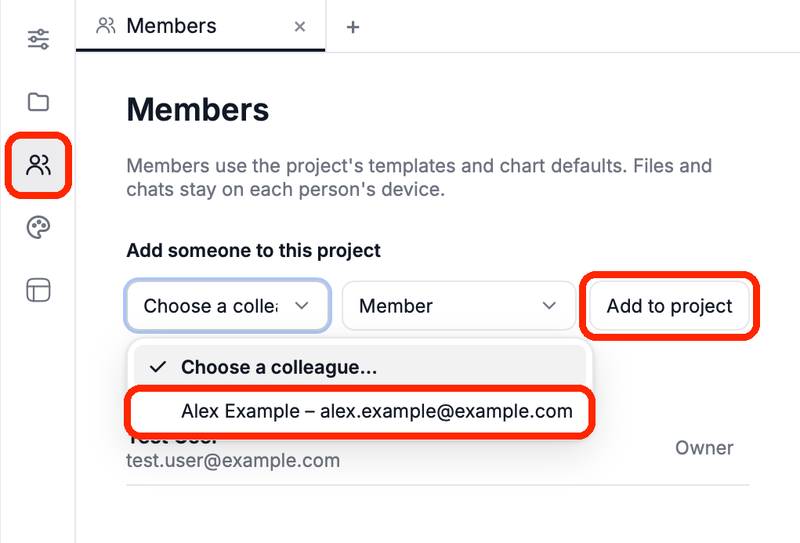
You can add people in your organization. To add someone new, first invite them to the organization on the dashboard (Users → Invite a team member).
The project then shows under Shared with you in their sidebar. When they open it, Hub asks where its folder goes on their computer.
Roles
| Role | Can |
|---|---|
| Owner | Everything: rename the project, set its goal and icon, manage administrators, hand the project to someone else |
| Administrator | Add and edit templates, chart defaults and guides; add and remove members |
| Member | Use the project's templates and chart defaults |
Organization admins can do everything in every project of the organization.
- Make owner hands the project to someone else; you stay an administrator.
- Remove takes someone out of the project. They lose its templates and chart defaults; their folder stays.
- Leave project does the same for yourself. The owner has to make someone else owner first.
What is shared
- Templates, template guides, chart defaults and chart templates of the project. Hub syncs them every few minutes.
- A new version of a PowerPoint template reaches members on their next sync. If a colleague uploaded one while you were editing, Hub keeps your edit aside with Show your copy and Upload your copy.
- Not shared: the files in the project folder and the chats.
When the chat or a connected AI app wants to change members or roles, you confirm with Apply.
Related
- Use a presentation template with my team – a shared project and template, start to finish