Appearance
Settings
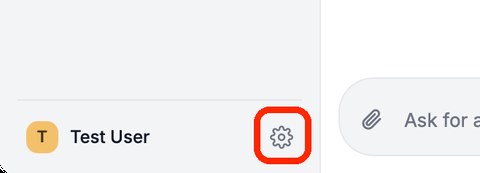
Click the gear at the bottom of the sidebar to open Settings.
Account
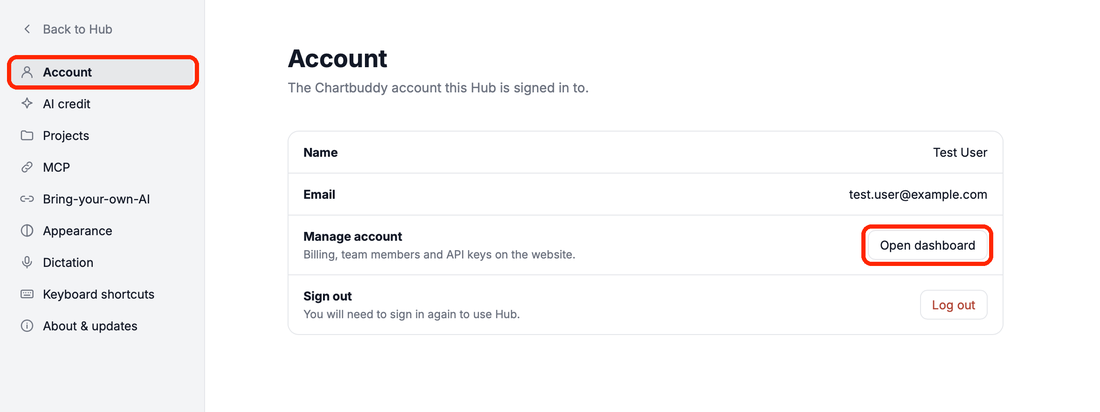
Name and Email of the Chartbuddy account Hub is signed in to. Open dashboard opens your account on the website (billing, team, API keys). Log out signs Hub out.
AI credit
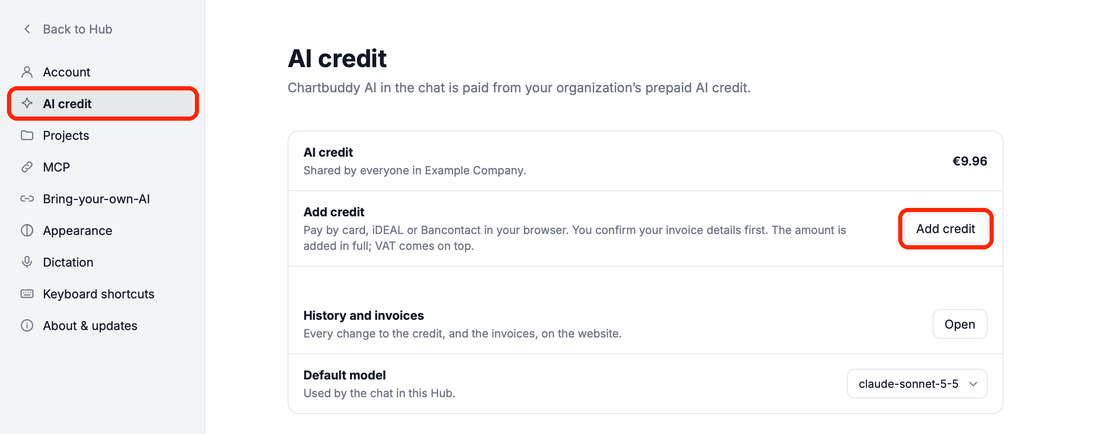
Your organization's AI credit for Hub's chat, Add credit (admins) or Ask an admin (members), History and invoices, and the Default model for the chat. See AI credit.
Projects
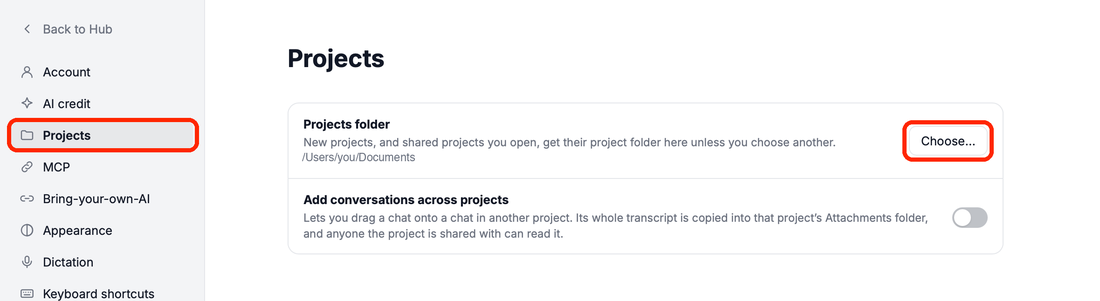
- Projects folder: where new and shared projects go. Choose… picks a folder; Use Documents goes back to your Documents folder.
- Add conversations across projects: lets you drag a chat onto a chat in another project. See Projects.
MCP
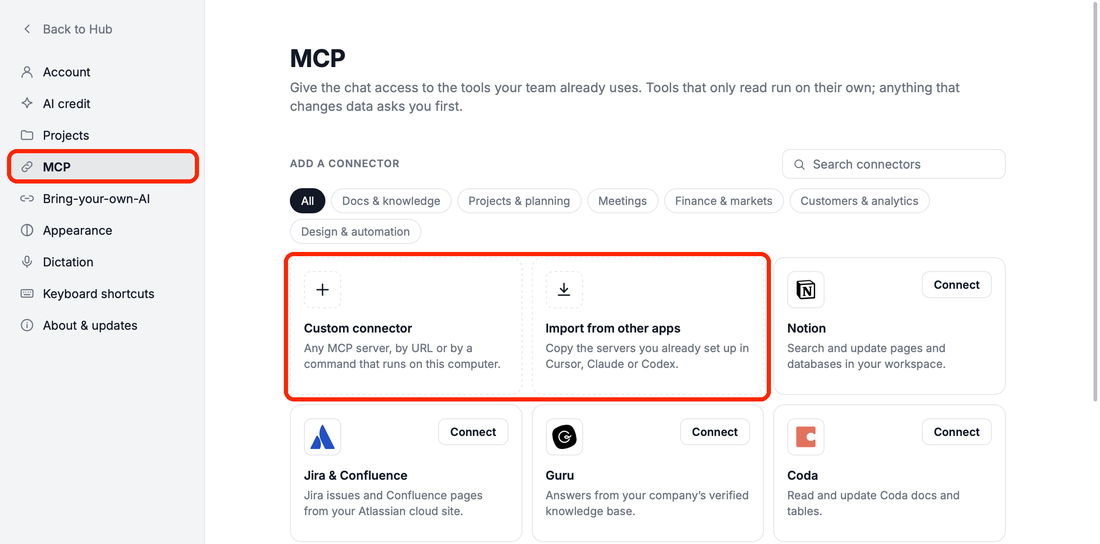
Connectors give Hub's chat tools from other services, such as Notion or Linear: add one from the list, add a Custom connector, or Import from other apps (Cursor, Claude, Codex). See MCP connectors.
Bring-your-own-AI
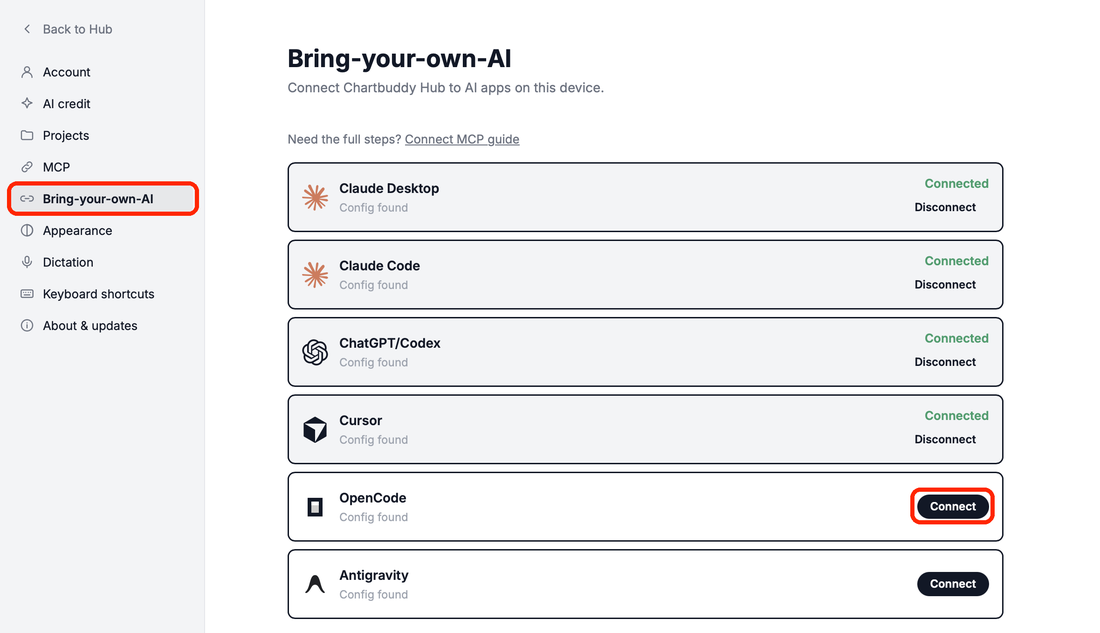
Connect Hub to AI apps on this computer, such as Claude Desktop, Claude Code, Cursor, OpenCode and ChatGPT/Codex. Each app shows Connect, Connected with Disconnect, or Needs repair with Repair. See Use Hub from your AI app.
Appearance
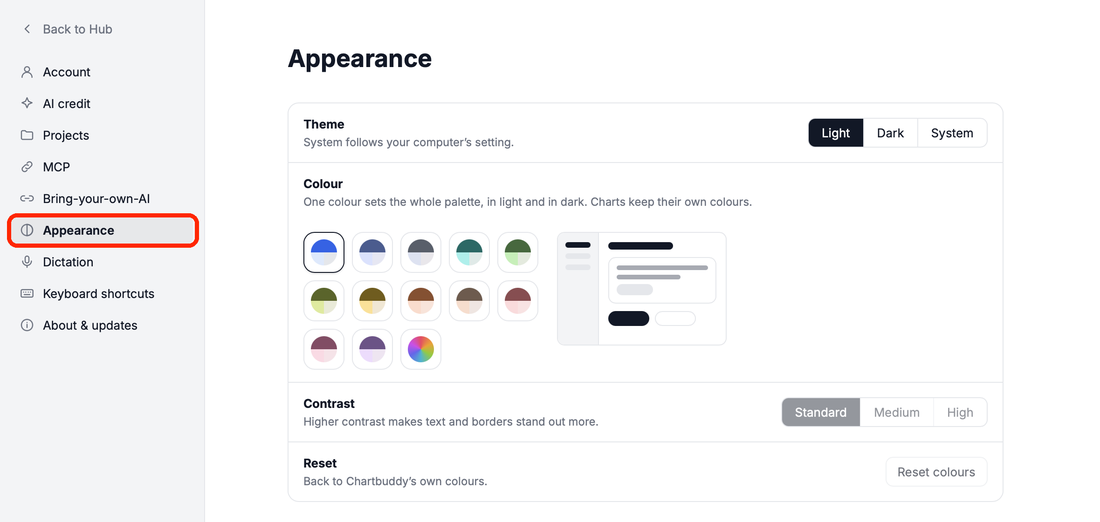
- Theme: Light, Dark or System.
- Colour: Chartbuddy's own colours, a preset or a Custom colour for Hub itself. Charts keep their own colours.
- Contrast: Standard, Medium or High.
- Reset colours goes back to Chartbuddy's colours.
Dictation
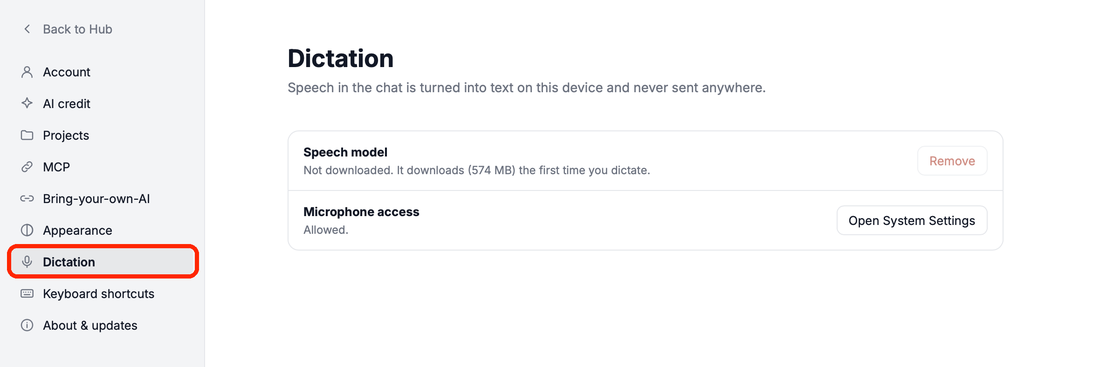
Speech in the chat is turned into text on your computer and never sent anywhere.
- Speech model: downloaded the first time you dictate. Remove deletes it.
- Microphone access: whether Hub may use the microphone. Open System Settings changes it.
Keyboard shortcuts
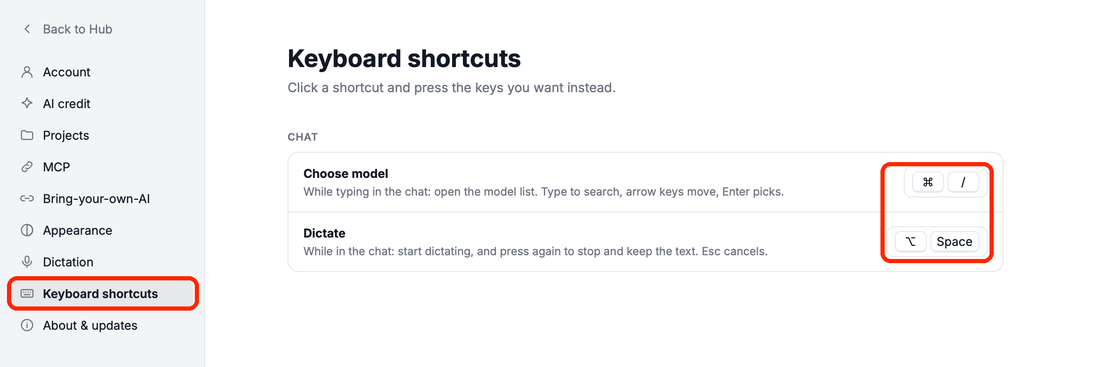
Click a shortcut and press the keys you want instead; Reset restores the default.
| Action | Default (Mac) | Default (Windows) |
|---|---|---|
| Choose model | ⌘/ | Ctrl+/ |
| Dictate | ⌥Space | Alt+Space |
About & updates
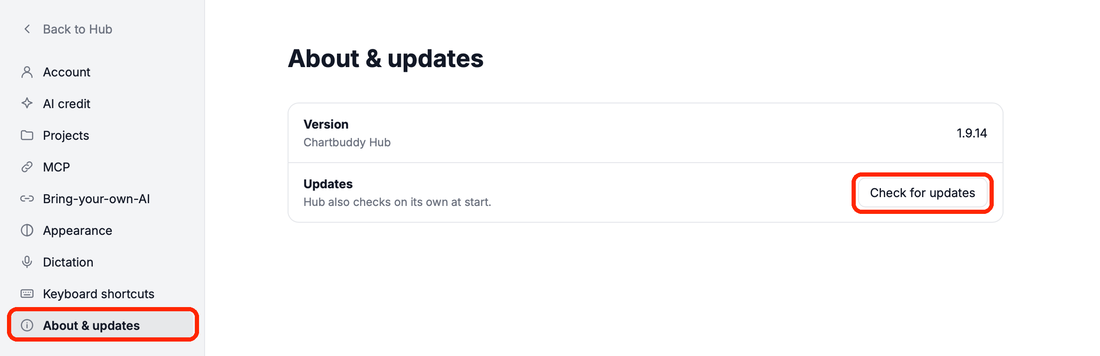
Your Version, and Check for updates. See Updates.
In this section
- The Connections page – which AI works with Hub and where it edits your decks
- Updates – how Hub stays up to date
- Troubleshooting – fixes for sign-in, AI apps, Google access, the chat and updates