
Appearance
Template library
Templates are the decks, documents and workbooks you start new work from. A template can be personal, shared with a project or shared with your whole organization.
Open the library
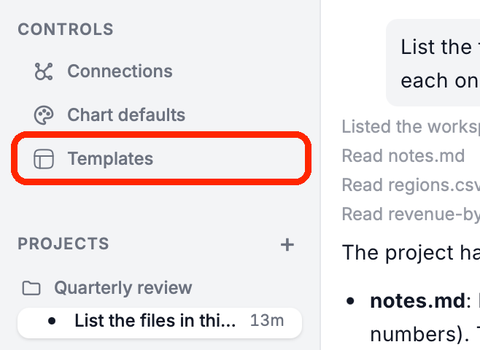
Open Templates under CONTROLS in the sidebar.
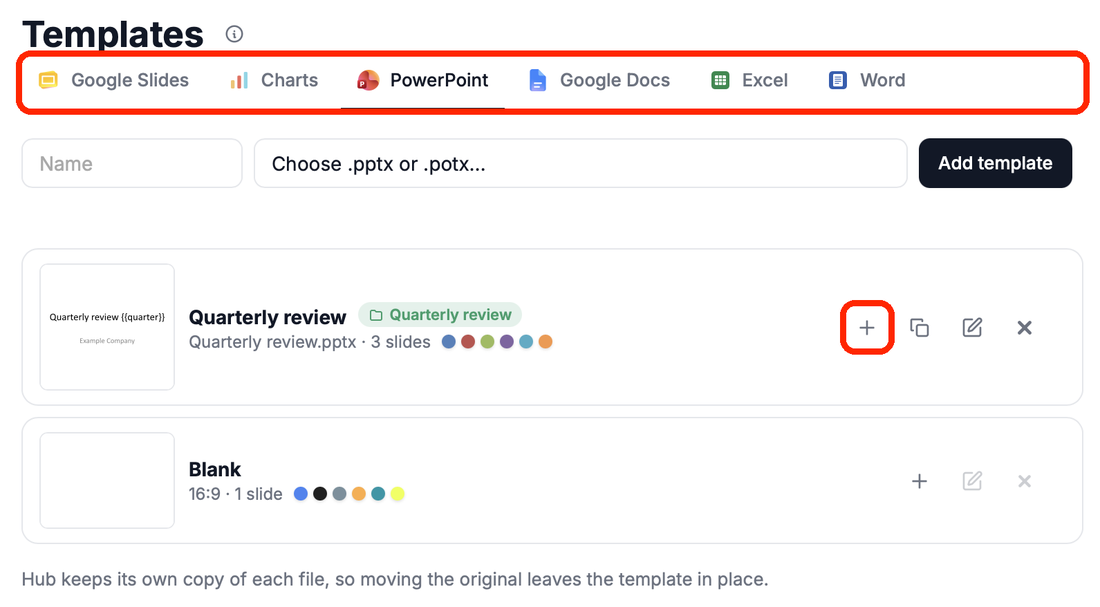
- The tabs are Google Slides, Charts, PowerPoint, Google Docs, Excel and Word. Filter by All, Personal, Organization or a project.
- Add a Google template: type a Name, paste the link, choose where it goes (Personal, the organization or a project) and click Add template. Hub checks that it can open the file first. Who may add organization templates is the admin setting Who can change templates, chart defaults, fonts and colours on the dashboard's Settings (by default Everyone, see Organization).
- Add a PowerPoint, Excel or Word template: click Choose .pptx or .potx… (or
.xlsx,.docx). Hub keeps its own copy, so moving the original leaves the template in place. - To remove a template, click Remove this template.
Templates in a project
A template in a project is shared with every member, and it can have a guide: a brief that tells the assistant how each new edition of a recurring deck is made. That is where most recurring work starts.
- Creating a Google Slides template
- Using a Google Slides template
- Creating a PowerPoint template
- Using a PowerPoint template
Chart templates and chart defaults are under Charts.